Code Review with AI
This guide walks through setting up a code review agent that runs automatically when a ticket receives a review label or an @mention. The agent reads the ticket, evaluates the code changes, and posts a structured review comment — including scores and a final verdict.
Create a Code Review Agent
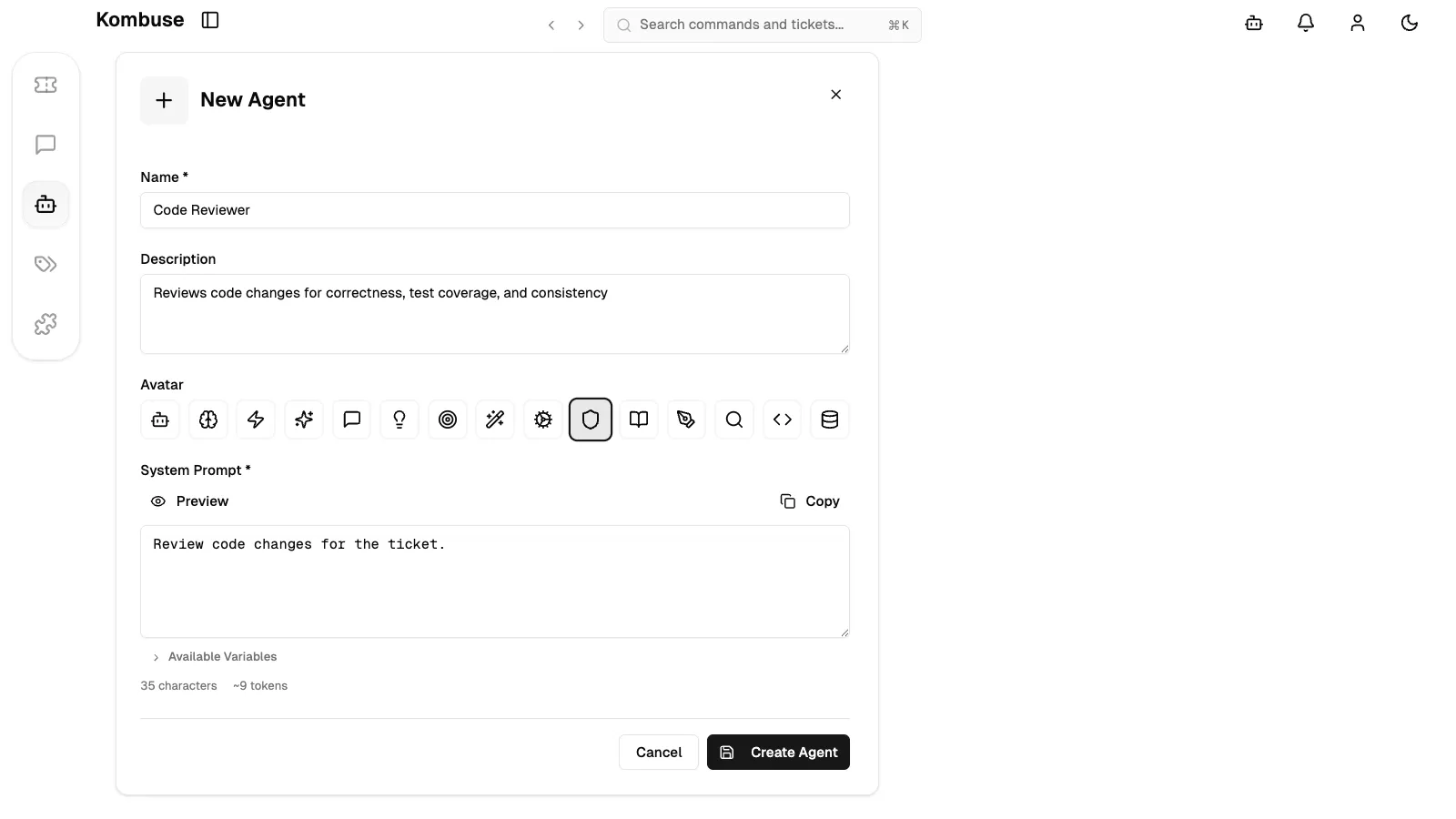
Section titled “Create a Code Review Agent”A custom agent dedicated to code review is created from the Agents page. Clicking Create Agent opens the creation form with four fields:
- Name (required) — a descriptive name like “Code Reviewer”
- Description (optional) — a summary of what the agent does, such as “Reviews code changes for correctness, test coverage, and consistency”
- Avatar — an icon to represent the agent in the interface (the shield icon is a natural fit for a reviewer)
- System Prompt (required) — the instructions that define the review criteria and output format
The following screenshot shows the form filled out with code review agent details. Clicking Create Agent saves the agent and navigates to its detail page.
Write the System Prompt
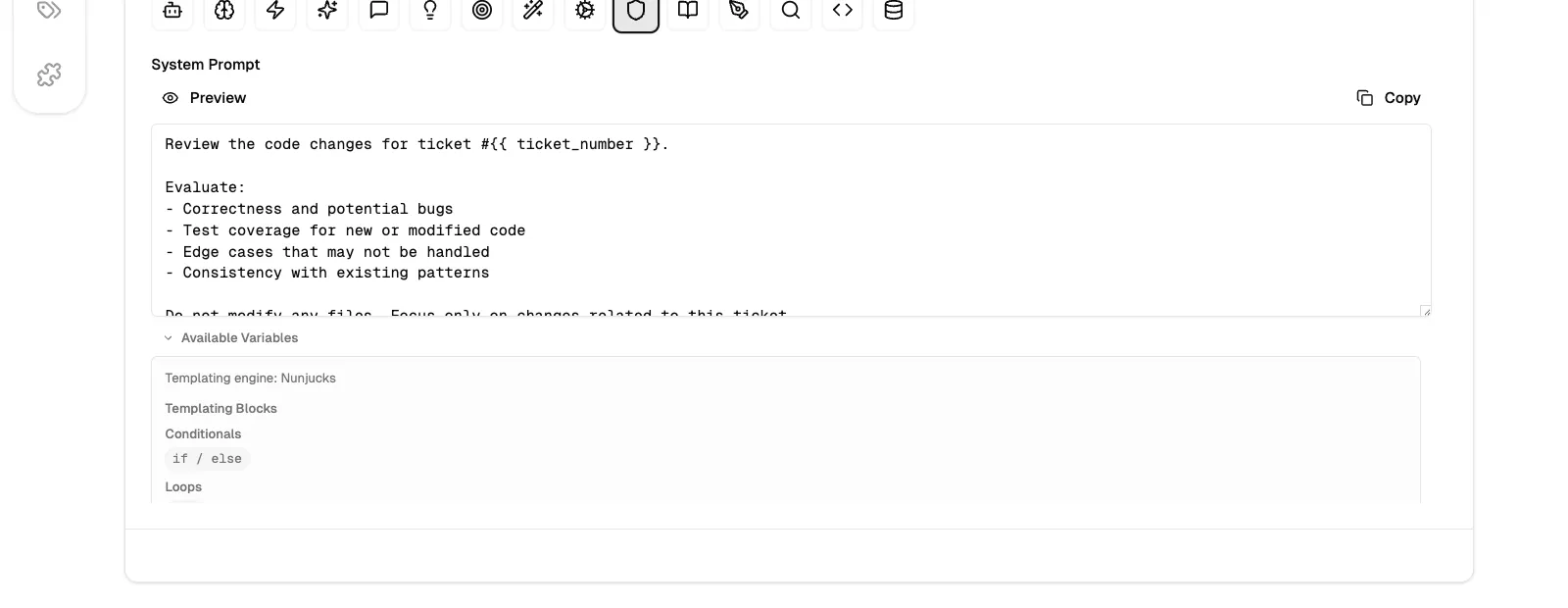
Section titled “Write the System Prompt”The system prompt defines the review logic. Template variables like {{ ticket_number }} are automatically replaced with real data when the agent runs. A code review prompt typically instructs the agent to:
- Read the code changes associated with the ticket
- Evaluate correctness and potential bugs
- Check test coverage for new or modified code
- Identify edge cases and consistency issues
- Post a comment with scores and a final verdict (LGTM or remaining issues)
- Remove the “Requires review” label when the review passes
The key template variables for a code review agent are:
| Variable | Description |
|---|---|
{{ ticket_number }} | The ticket number, used to reference the ticket in review comments |
{{ ticket.title }} | The ticket title |
{{ ticket.body }} | The ticket description |
{{ comment.body }} | The triggering comment text (available on mention triggers) |
{{ kombuse_session_id }} | Required for the agent to post comments and update tickets |
The Available variables panel below the prompt editor lists all variables with descriptions and notes on when each is available.
Add Triggers
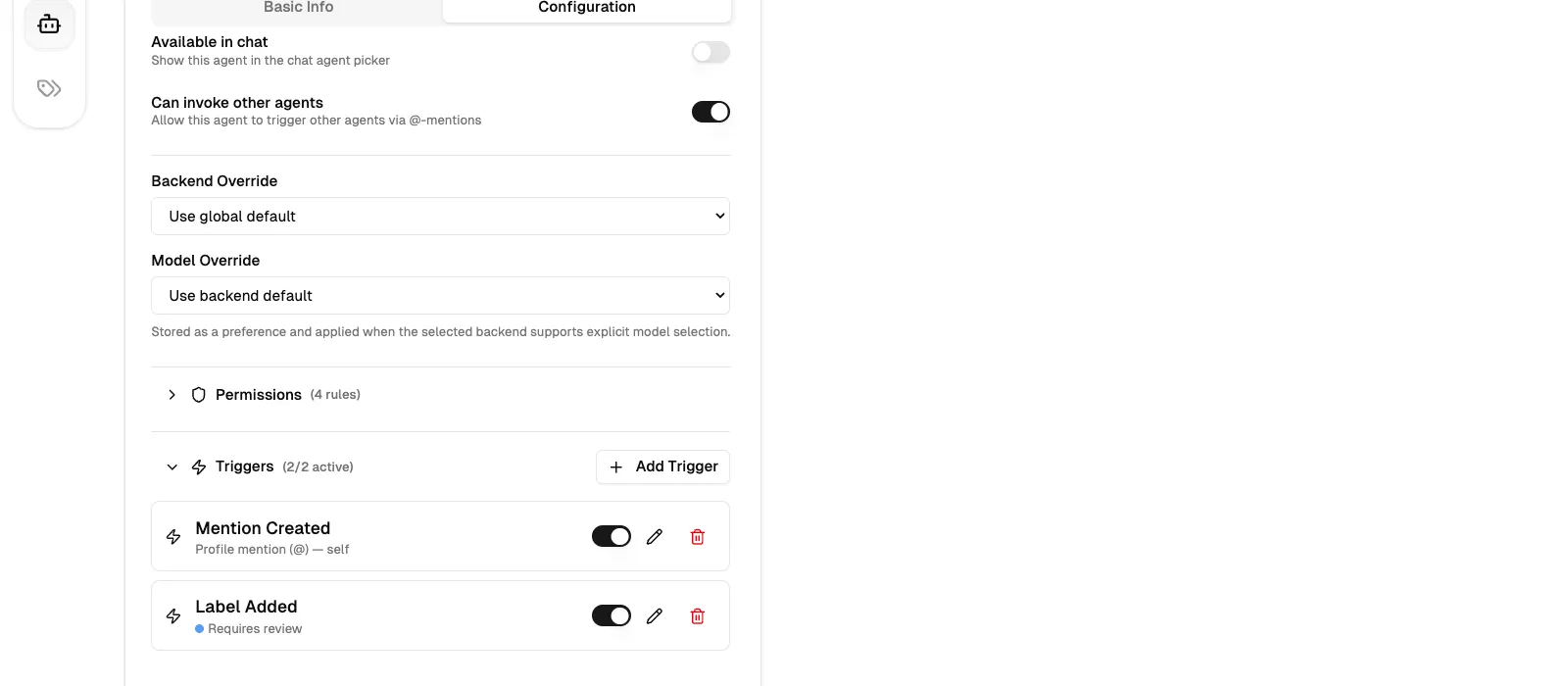
Section titled “Add Triggers”Triggers determine when the agent runs automatically. The code review agent is configured with two triggers on the Configuration tab of the agent detail page, in the Triggers section (zap icon).
Label trigger
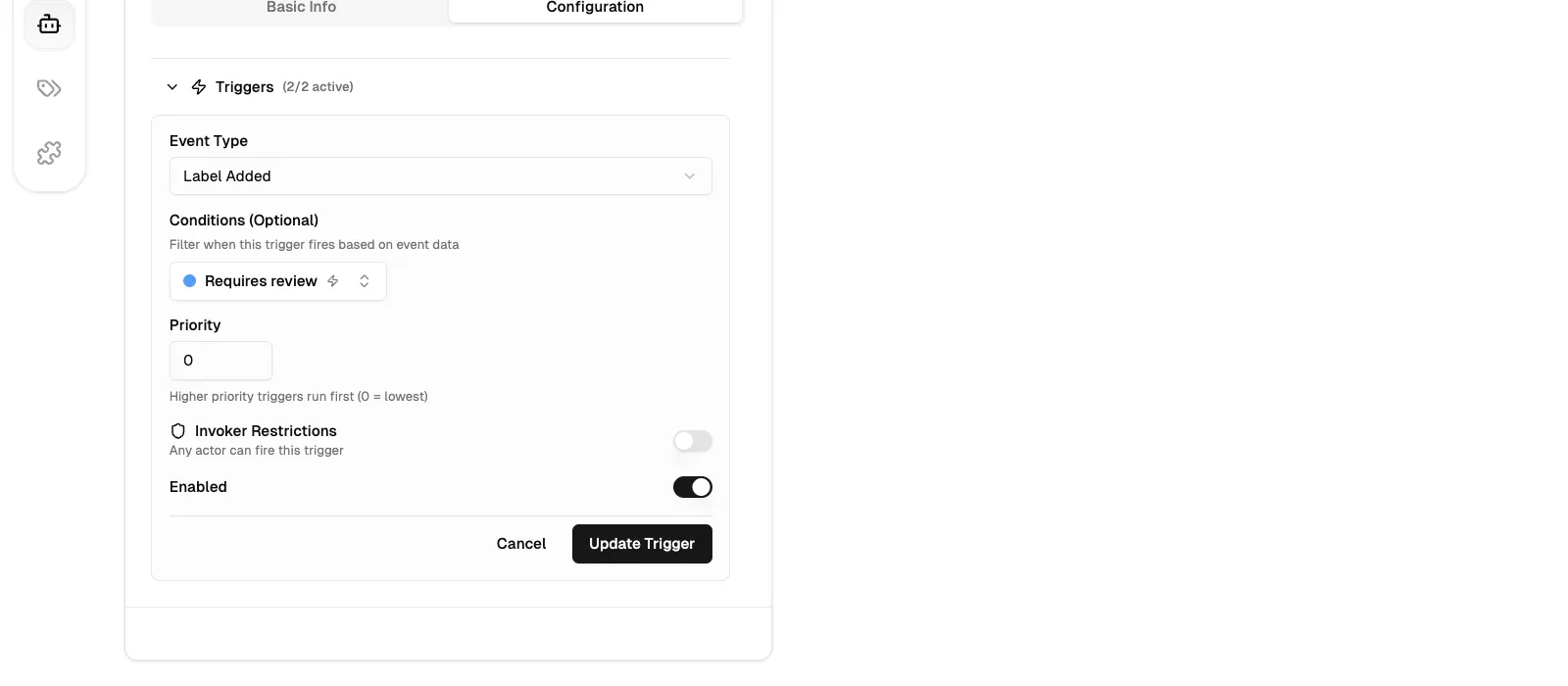
Section titled “Label trigger”The first trigger fires on Label Added events with a condition matching the “Requires review” label. When any ticket in the project receives this label, the agent starts a review session. This is the primary automation path — other agents or team members add the “Requires review” label when code is ready for review.
Mention trigger
Section titled “Mention trigger”The second trigger fires on Mention Created events with the mention type set to “profile”. This allows anyone to start a review by @mentioning the Code Reviewer in a ticket comment. Setting the mention type to “profile” ensures the trigger fires only on direct @mentions of the agent, not on ticket references.
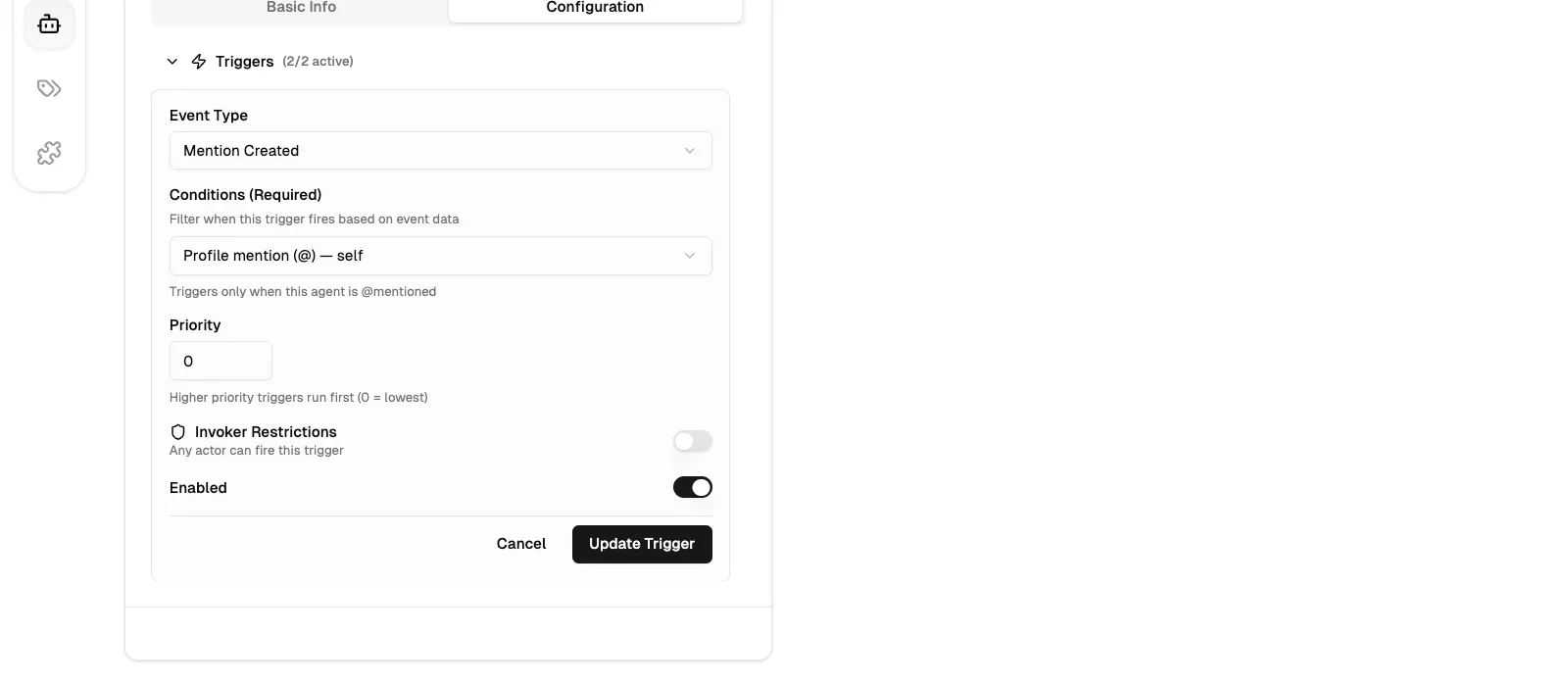
After both triggers are saved, they appear in the list with individual enable/disable toggles, making it easy to pause either trigger without deleting it.
Set Permissions
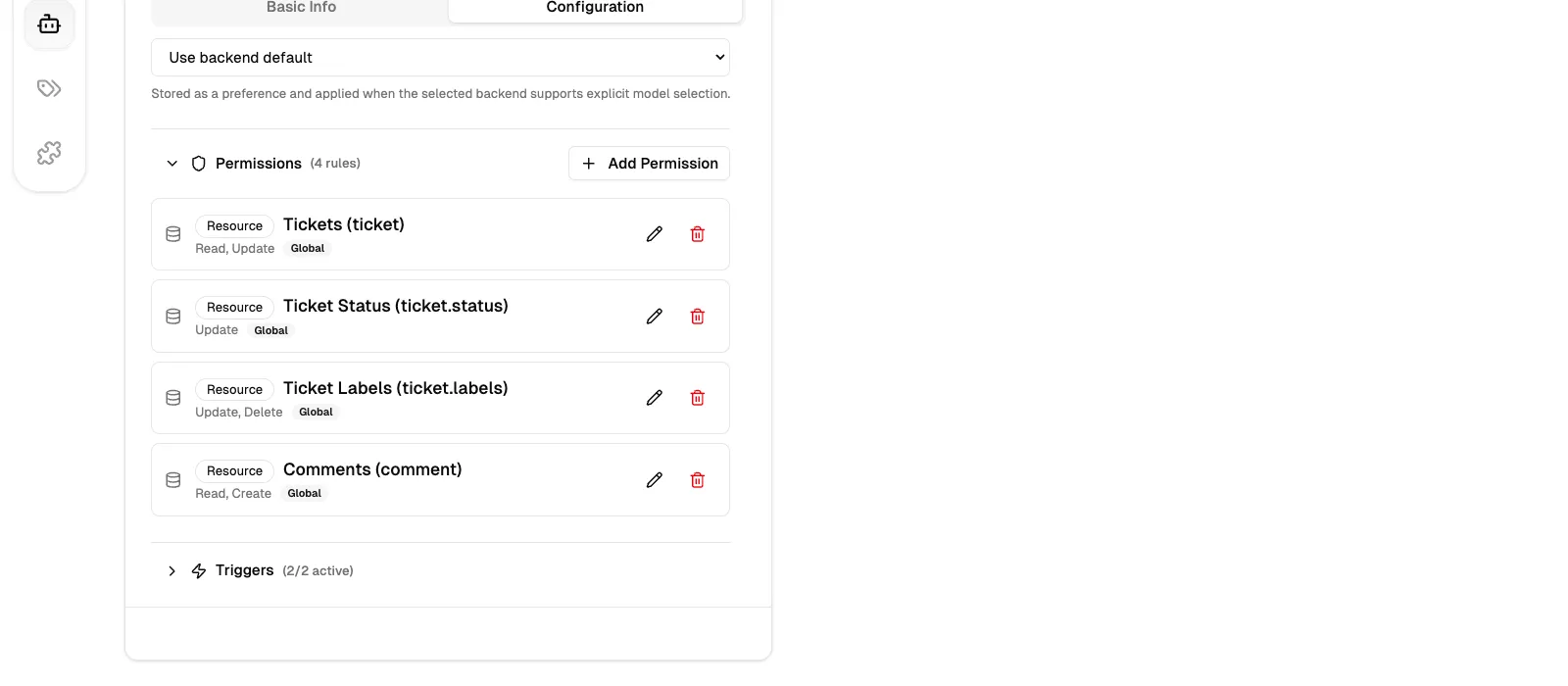
Section titled “Set Permissions”Permissions define what the agent is allowed to access at runtime. For a code review agent, four resource permissions are configured:
| Resource | Actions | Purpose |
|---|---|---|
| Tickets | Read, Update | Read ticket content and update the ticket when the review is complete |
| Ticket Status | Update | Transition the ticket status (e.g. close it after an approved review) |
| Ticket Labels | Update, Delete | Manage the “Requires review” label after a review |
| Comments | Read, Create | Read existing discussion for context and post the review comment |
Permissions are added one at a time using the Add Permission button in the Permissions section (shield icon) on the Configuration tab. Without these permissions, the agent’s tool calls are denied at runtime and the denial details are logged in the agent session history.
How It Works
Section titled “How It Works”With the code review agent configured, the full flow runs automatically:
- A user or another agent adds the “Requires review” label to a ticket, or @mentions the Code Reviewer in a comment
- The matching trigger fires (
label.addedormention.created) and the agent is invoked - The agent receives the ticket context through template variables and begins reviewing
- The agent evaluates the code changes, then posts a comment with its findings — including scores for Code Quality, Test Coverage, and Readiness on a 1-10 scale
- If the review passes (LGTM), the agent removes the “Requires review” label to signal completion
- The session completes — the full review is visible as a comment on the ticket
The agent runs in the background. If it encounters an error or lacks permission for an action, the details are logged in the agent session history, accessible from the agent detail page. The code review agent pairs well with other agents in a pipeline — for example, a coding agent can add the “Requires review” label after completing its work, automatically triggering the review.
See also
Section titled “See also”- Agent Triggers — configure event-driven automation for agents
- Agent Permissions — control what resources and tools agents can access
- MCP Integration — connect external AI tools to Kombuse