MCP Integration
Kombuse implements an MCP (Model Context Protocol) server that exposes project data — tickets, comments, agents, and the database — as tools that any compatible AI client can use. This guide explains what MCP is, how to enable it for different AI clients, and what tools are available.
What is MCP?
Section titled “What is MCP?”MCP (Model Context Protocol) is an open standard that allows AI assistants to interact with external tools and data sources through a structured interface. Rather than copying and pasting context into a chat window, an MCP-connected AI client can read tickets, post comments, and query the database directly.
Kombuse runs an MCP endpoint at /mcp on its local HTTP server (server name: kombuse, version 0.1.0). A lightweight bridge process (mcp-bridge.mjs) translates between the stdio transport that MCP clients expect and that HTTP endpoint. When the Kombuse desktop app starts, it writes the server port to ~/.kombuse/server-port; the bridge watches this file and forwards JSON-RPC messages to the running server.
Any MCP-compatible tool — Claude Code, Claude Desktop, Cursor, or others — can connect to Kombuse by pointing to the bridge process.
Enabling MCP in Settings
Section titled “Enabling MCP in Settings”The Settings page includes three MCP-related cards in the Chat tab. These automate configuration for Claude Code and Codex specifically.
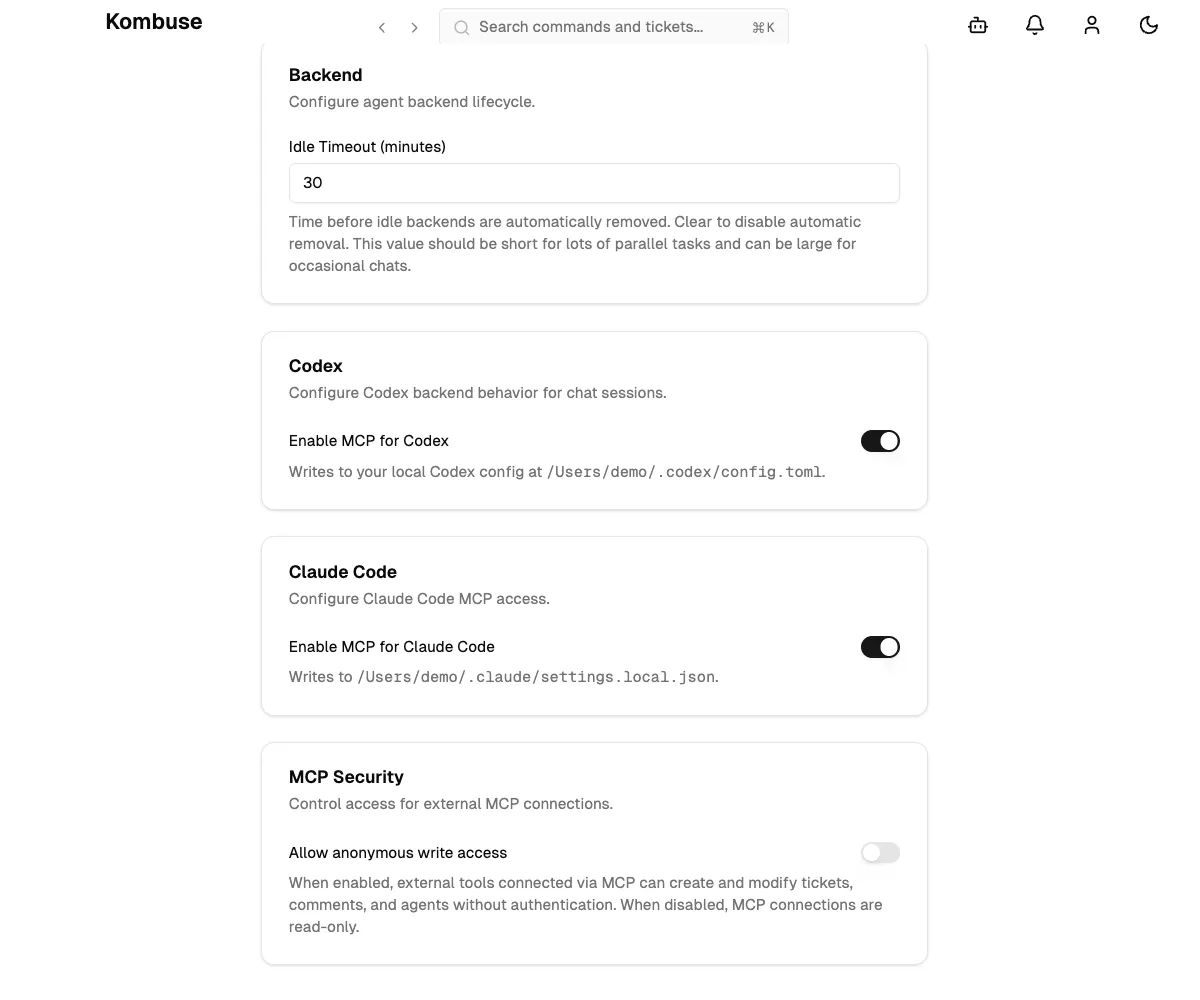
The three cards are:
-
Codex — the “Enable MCP for Codex” toggle writes an MCP server entry to
~/.codex/config.toml. Toggling this setting stops all active Codex backends. -
Claude Code — the “Enable MCP for Claude Code” toggle writes an MCP server entry to
~/.claude/settings.local.json. This applies globally to all Claude Code sessions. Toggling this setting stops all active Claude Code backends. -
MCP Security — the “Allow anonymous write access” toggle controls whether external MCP connections can create and modify data. See the Anonymous Write Access section for details.
For other MCP clients (Claude Desktop, Cursor), manual configuration is required — see the next section.
Configuring MCP Clients
Section titled “Configuring MCP Clients”All MCP clients connect to Kombuse through the same bridge process. The configuration tells each client how to launch the bridge.
Claude Code — the easiest setup is the Initialize Project button on the project settings page. The button description reads: “Set up AGENTS.md, MCP config, and .kombuse directory for this project.” Clicking it creates a .mcp.json file in the project directory with the correct bridge path.
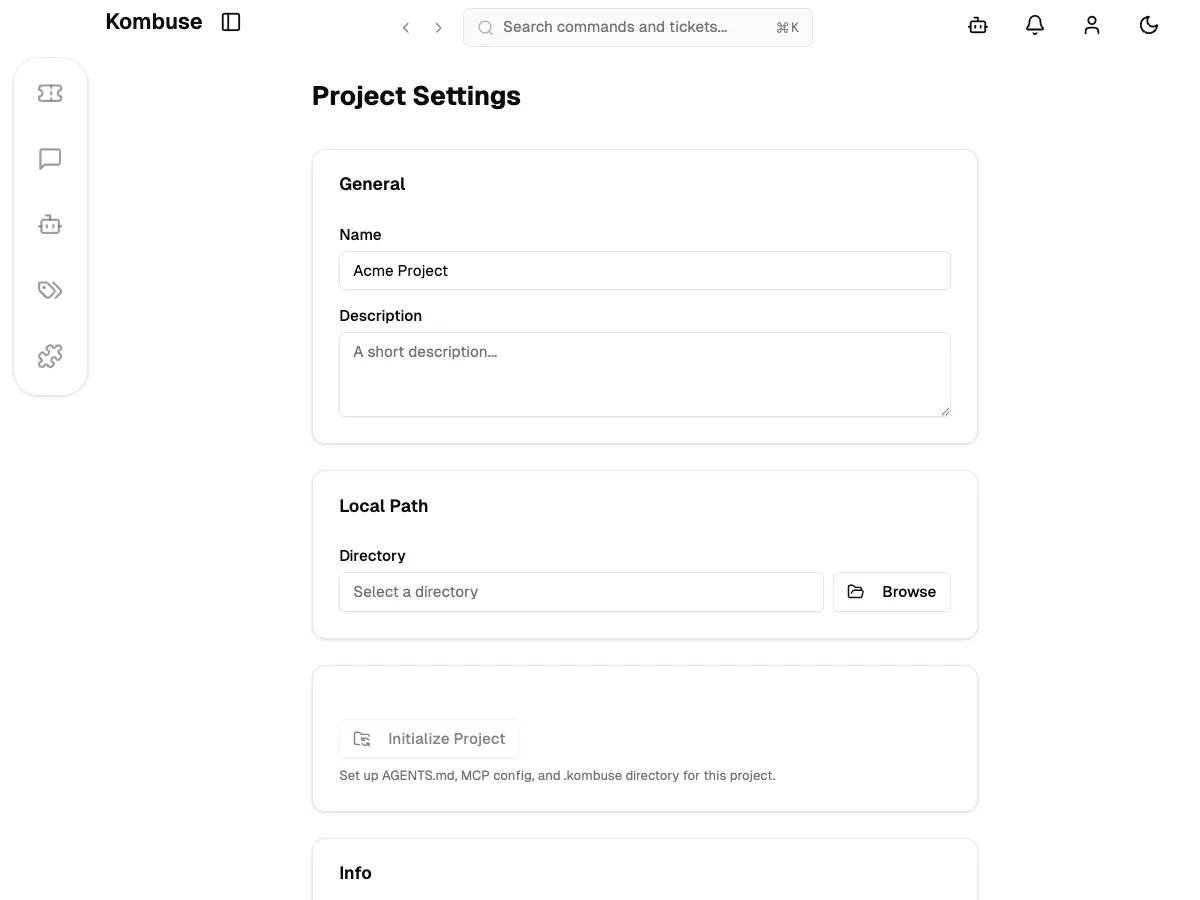
The generated .mcp.json has this structure (the bridge path reflects the actual Kombuse installation location on the system):
{ "mcpServers": { "kombuse": { "type": "stdio", "command": "node", "args": ["/path/to/kombuse/server/mcp-bridge.mjs"] } }}Claude Desktop — the same mcpServers block is added to the Claude Desktop configuration file (claude_desktop_config.json). The bridge command and args are identical to the Claude Code configuration.
Cursor — the server entry is added to .cursor/mcp.json in the project directory, or configured through Cursor’s MCP settings UI. The format is the same as the Claude Code configuration above.
Anonymous Write Access
Section titled “Anonymous Write Access”By default, external MCP connections are read-only. Read tools such as list_tickets, search_tickets, get_ticket, query_db, list_agents, list_tables, and list_api_endpoints work without any special permissions.
Write operations — create_ticket, add_comment, update_ticket, update_comment, create_agent, update_agent — are blocked unless anonymous write access is enabled.
The “Allow anonymous write access” toggle is in Settings → Chat tab → MCP Security. When enabled, external tools connected via MCP can create and modify tickets, comments, and agents without authentication. When disabled, MCP connections are read-only. The setting defaults to disabled.
Enable it when AI agents need to create tickets, post comments, or manage agents through MCP. Disable it to prevent unintended modifications from external tools.
Available Tools
Section titled “Available Tools”Kombuse exposes a comprehensive set of MCP tools across six categories. Desktop tools are only available when running the desktop app.
Tickets and Projects
Section titled “Tickets and Projects”| Tool | Description |
|---|---|
create_ticket | Create a new ticket with title, description, and optional fields |
get_ticket | Read a ticket with comments, labels, and metadata (25 KB response cap) |
list_tickets | List tickets with filtering by status, assignee, labels, and sorting |
search_tickets | Full-text search across ticket titles, bodies, and comments |
update_ticket | Update status, priority, labels, assignee, title, or body |
list_projects | List all projects in the workspace |
list_labels | List all labels available in a project |
Comments
Section titled “Comments”| Tool | Description |
|---|---|
add_comment | Add a comment to a ticket (supports @profile and #ticket mentions) |
get_ticket_comment | Read a single comment by ID |
update_comment | Edit a previously posted comment |
Agents
Section titled “Agents”| Tool | Description |
|---|---|
list_agents | List agents with optional project and enabled/disabled filters |
create_agent | Create a new agent with system prompt, permissions, and config |
update_agent | Update an agent’s prompt, permissions, config, or enabled state |
Database
Section titled “Database”| Tool | Description |
|---|---|
query_db | Execute read-only SQL queries (SELECT only, max 500 rows) |
list_tables | List all tables and views in the database |
describe_table | Show the schema of a specific table with columns and foreign keys |
| Tool | Description |
|---|---|
list_api_endpoints | Discover all available Kombuse REST API endpoints |
call_api | Call a GET endpoint on the Kombuse API |
Desktop (desktop app only)
Section titled “Desktop (desktop app only)”These tools are only available when Kombuse is running as a desktop application.
| Tool | Description |
|---|---|
list_windows | List all open Kombuse desktop windows |
open_window | Open a new desktop window, optionally navigating to a path |
navigate_to | Navigate an existing window to a new path |
execute_js | Execute JavaScript in an isolated desktop window |
wait_for | Wait for a CSS selector to appear in a window’s DOM |
take_screenshot | Capture a screenshot of a window as PNG |
save_screenshot | Capture and save a screenshot to disk |
close_window | Close a desktop window |
See also
Section titled “See also”- Using Kombuse from Claude Code — set up the MCP connection and manage tickets from Claude Code
- API Reference — full REST API and WebSocket documentation