Agent Triggers
Triggers are the event-driven automation system in Kombuse. They connect ticket lifecycle events to agent actions — when a specific event occurs (such as a ticket being created, a label being added, or a comment being posted), matching triggers automatically start the associated agent. Each trigger belongs to a specific agent and is configured in that agent’s Configuration tab.
Triggers have four key components: an event type, optional conditions, optional invoker restrictions, and a priority. For general agent setup, see the Agents reference page.
The Triggers Section
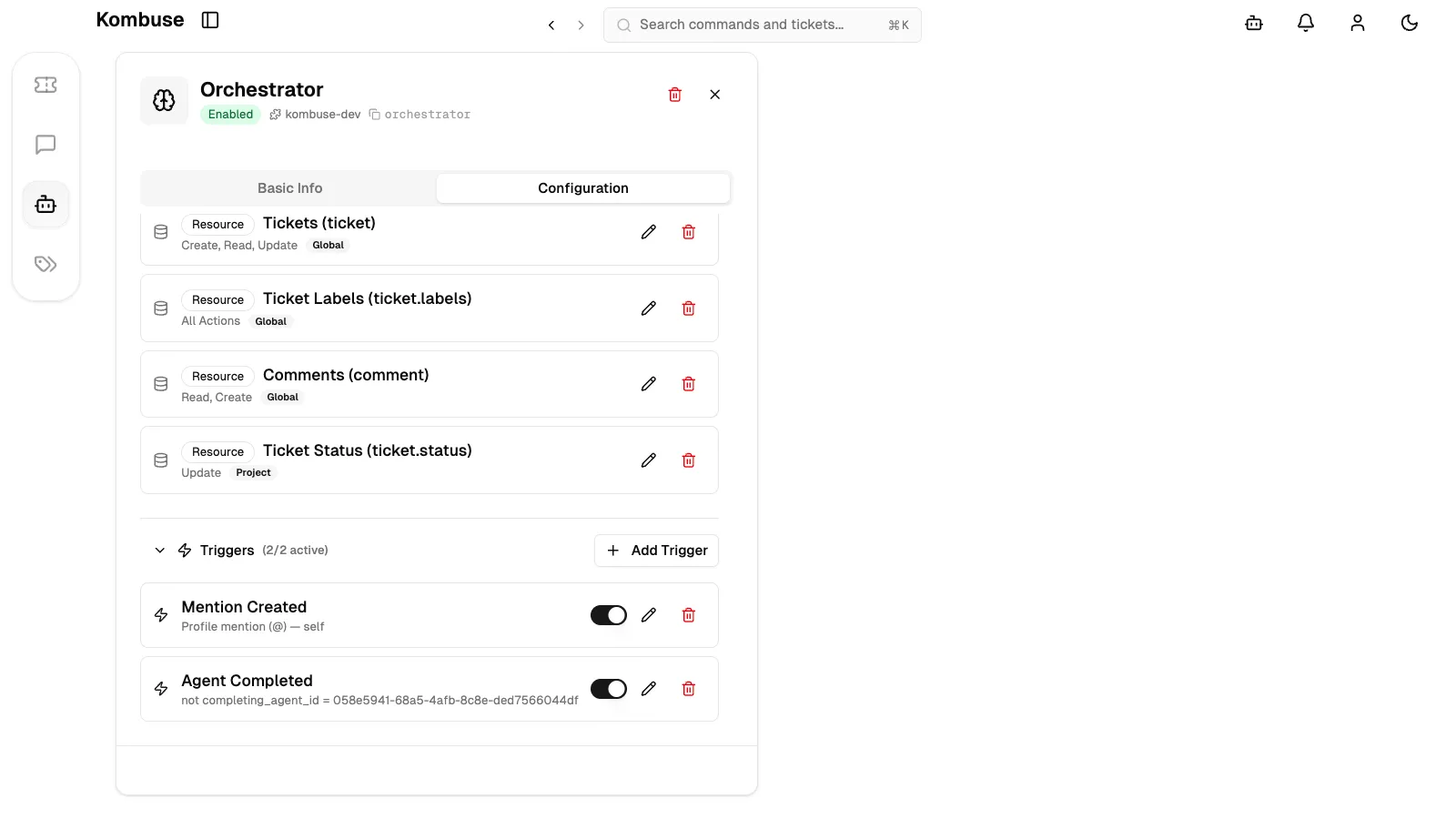
Section titled “The Triggers Section”The Triggers section is located in the agent’s Configuration tab, below the Permissions section. It is a collapsible panel identified by a zap icon and the heading Triggers. The header also displays the active count as (N/M active), where N is the number of enabled triggers and M is the total.
Each trigger in the list shows its event type label (e.g., “Ticket Created”, “Label Added”), a condition summary if conditions are set, the priority if non-zero, and a shield icon if invoker restrictions are configured. An enable/disable toggle appears on every trigger item, along with edit (pencil) and delete (trash) buttons. The Add Trigger button in the top-right of the section opens the creation form.
Creating a Trigger
Section titled “Creating a Trigger”Clicking Add Trigger opens the trigger creation form inline within the Triggers section. The form contains five fields:
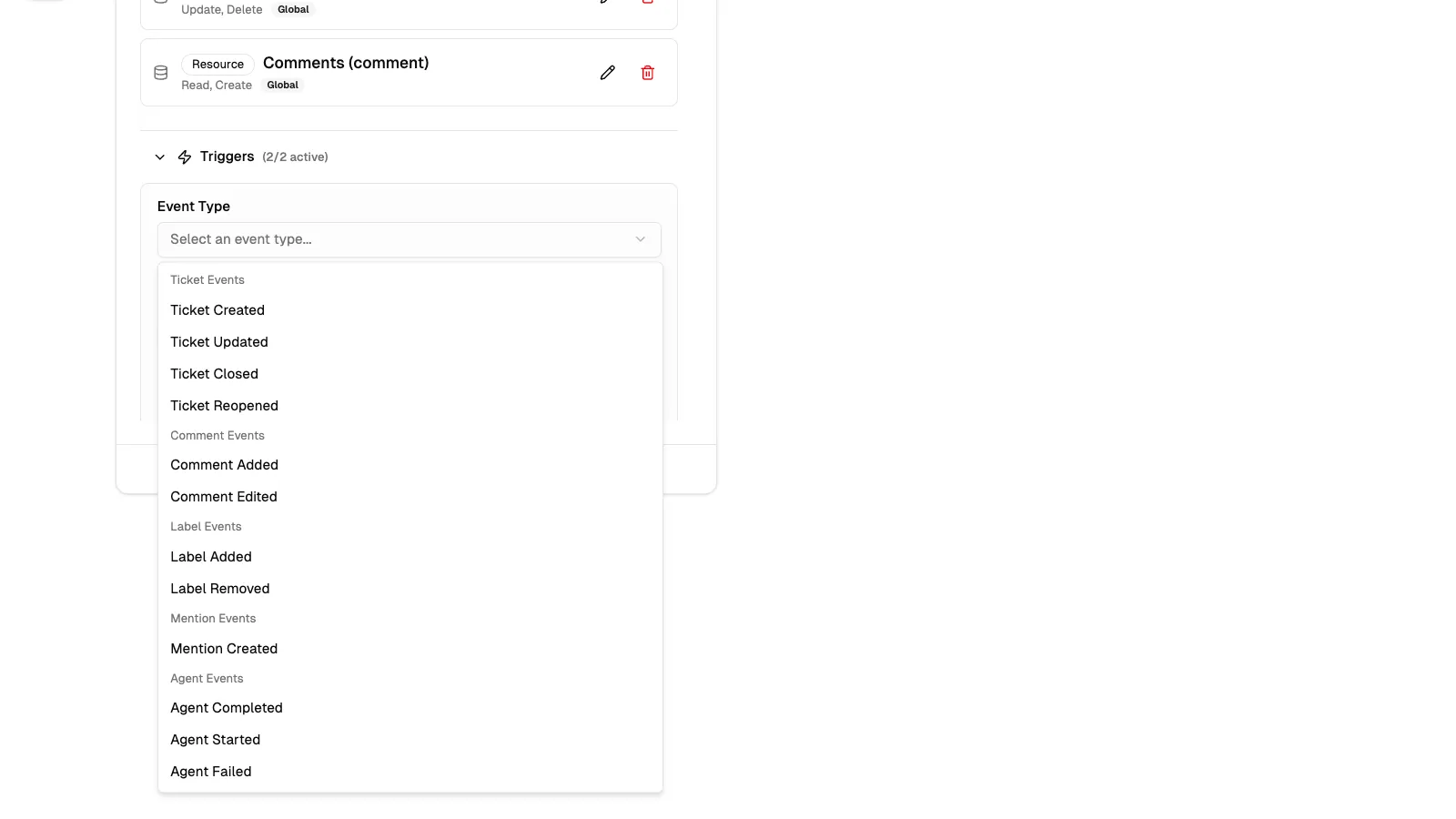
- Event Type — a required dropdown selector with events grouped into five categories: Ticket Events, Comment Events, Label Events, Mention Events, and Agent Events.
- Conditions — optional filters that restrict when the trigger fires (required for mention events). The UI adapts based on the selected event type.
- Priority — a numeric input (0 = lowest). Higher-priority triggers run first when multiple triggers match the same event.
- Invoker Restrictions — optional rules controlling which actors can fire the trigger (see the dedicated section below).
- Enabled — an on/off toggle, enabled by default.
The Create Trigger button saves the new trigger. Cancel discards changes and returns to the trigger list.
Event Types
Section titled “Event Types”Each trigger fires on exactly one event type. The available event types are grouped into five categories:
| Event Type | Description |
|---|---|
| Ticket Created | When a new ticket is created |
| Ticket Updated | When a ticket is modified |
| Ticket Closed | When a ticket is closed |
| Ticket Reopened | When a closed ticket is reopened |
| Comment Added | When a comment is added to a ticket |
| Comment Edited | When a comment is edited |
| Label Added | When a label is added to a ticket |
| Label Removed | When a label is removed from a ticket |
| Mention Created | When a @profile or #ticket mention is created |
| Agent Started | When an agent begins execution on a ticket |
| Agent Completed | When an agent completes its work on a ticket |
| Agent Failed | When an agent execution fails |
Conditions
Section titled “Conditions”Conditions filter when a trigger fires based on the event payload. The form adapts its condition UI based on the selected event type.
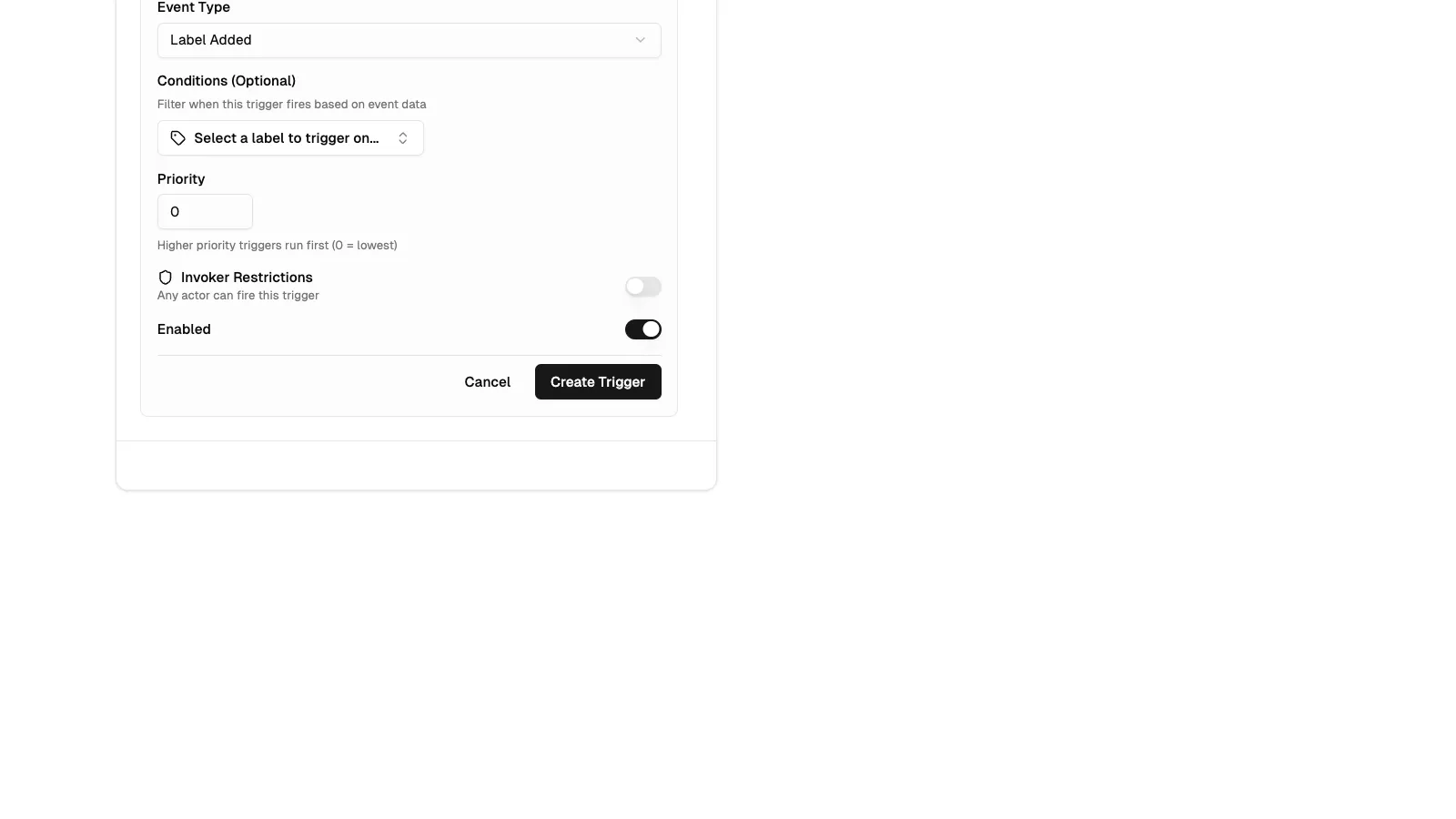
Label events (Label Added / Label Removed) display a label picker with the placeholder “Select a label to trigger on…”. Selecting a label restricts the trigger to fire only when that specific label is added or removed.
Mention events (Mention Created) show a mention type picker with two options: “Profile mention (@) — self” (fires when this agent is @mentioned) and “Ticket mention (#)” (fires on ticket references). Conditions are required for mention triggers.
Comment events (Comment Added / Comment Edited) show an author filter with options: “Any author (no filter)”, “Human users only”, and “Agents only”. When “Agents only” is selected, a searchable agent picker appears to optionally restrict to a specific agent. A generic condition editor is also available for additional filtering.
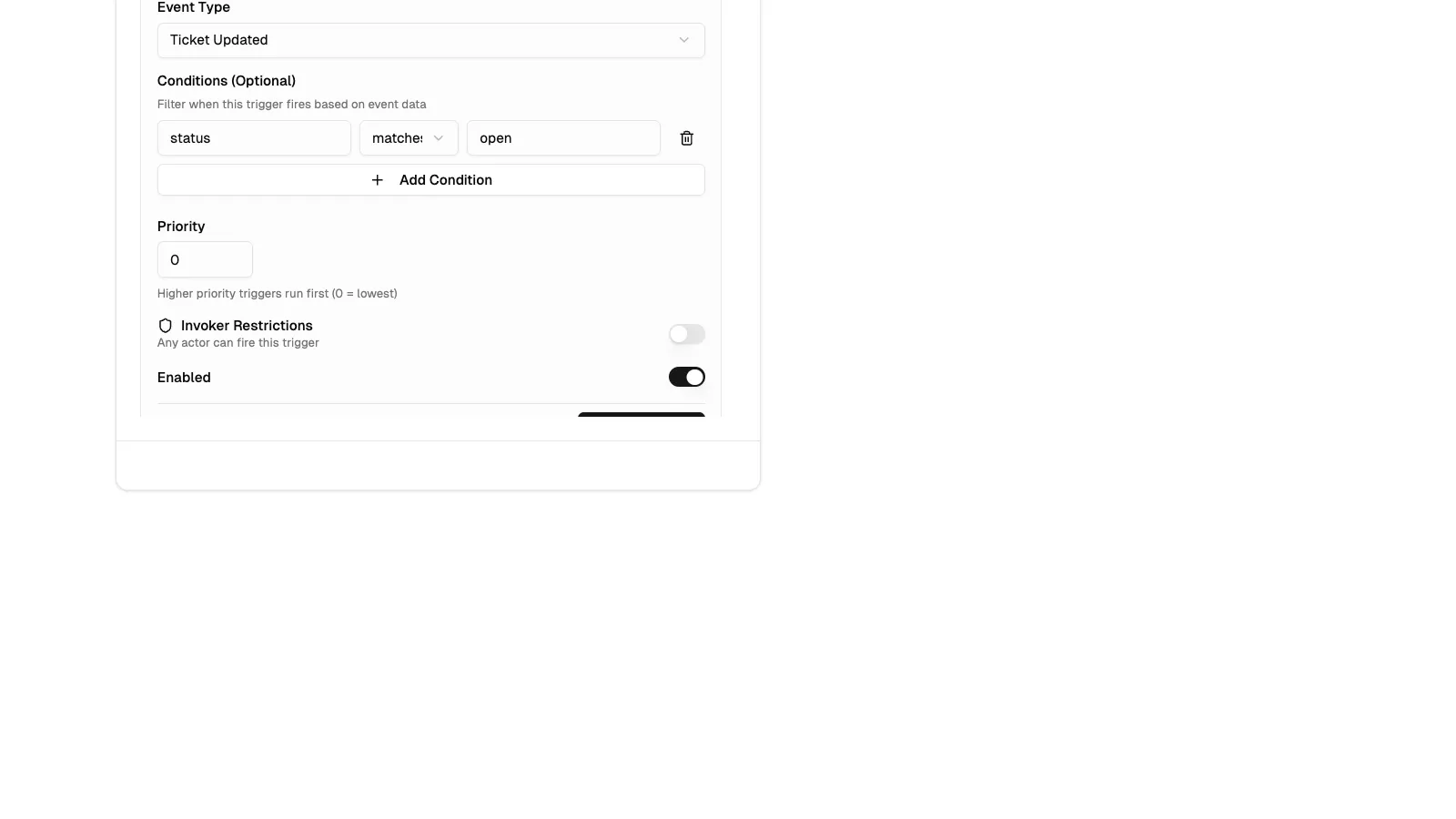
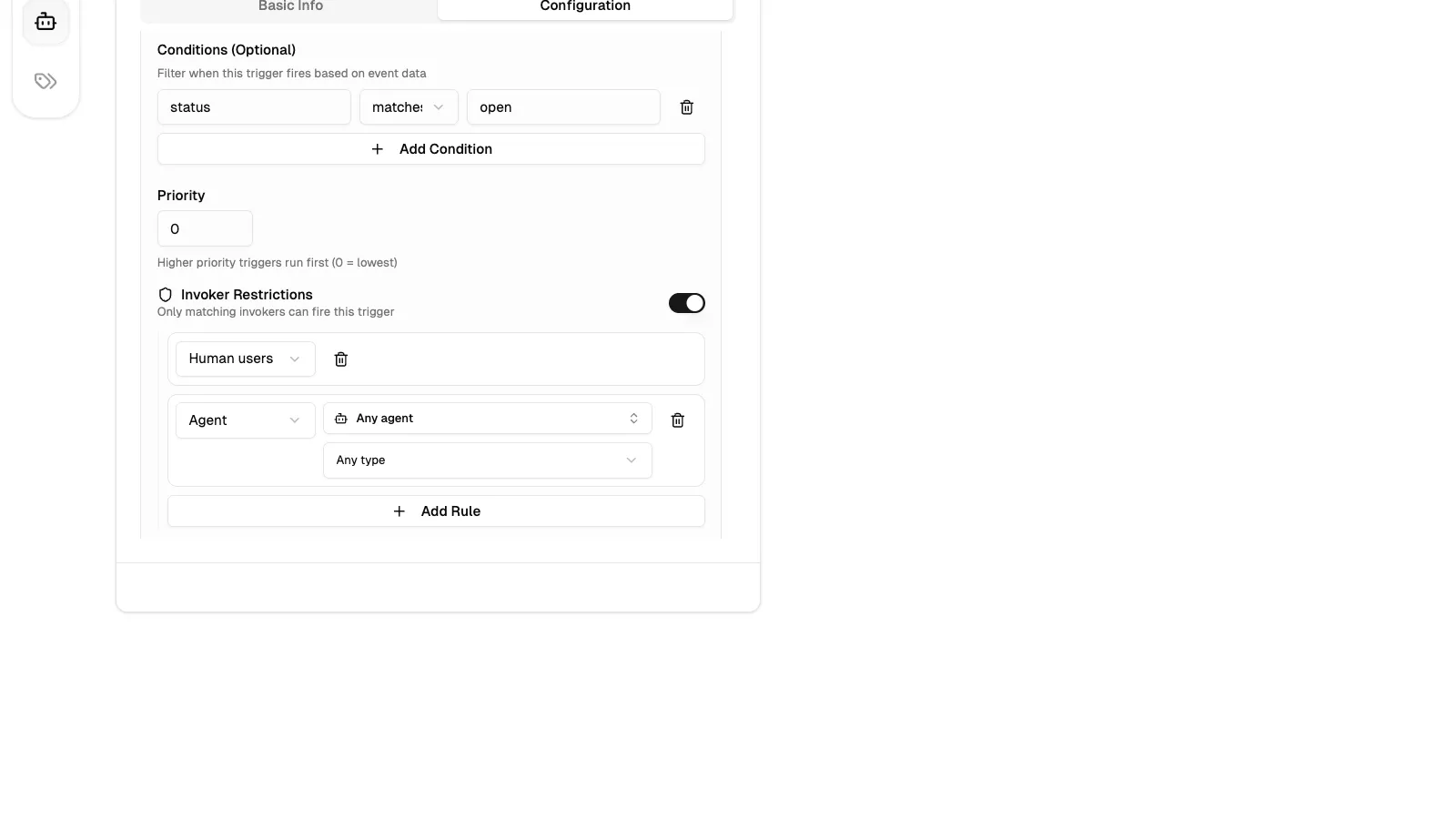
All other events show the generic condition editor. Each condition row has three parts: a key field (with autocomplete suggestions including status, priority, assignee_id, label_id, changes, author_type, completing_agent_id, and completing_agent_type), a mode selector (“matches” for equality or “excludes” for negation), and a value field. Multiple conditions can be added with the Add Condition button; all conditions must match for the trigger to fire.
Invoker Restrictions
Section titled “Invoker Restrictions”By default, any actor can fire a trigger (the description reads “Any actor can fire this trigger”). Toggling the Invoker Restrictions switch on enables fine-grained access control (the description changes to “Only matching invokers can fire this trigger”).
Rules are added with the Add Rule button. Each rule has a type selector with four options:
- Anyone — allows all actors (equivalent to unrestricted)
- Human users — only human user actions fire the trigger
- Agent — only agent actions fire the trigger; two optional sub-fields appear: an agent picker (to select a specific agent by name, or leave as “Any agent”) and an agent type dropdown (to match by type, or leave as “Any type”)
- System — only system-generated events fire the trigger
Multiple rules use OR logic — the trigger fires if any single rule matches the event’s actor. If the switch is on but no rules are added, no one can fire the trigger; an amber warning reads “No rules defined — no one can fire this trigger”. Rules can be removed with the trash icon next to each row.
Smart Labels
Section titled “Smart Labels”A smart label is any label referenced by at least one enabled trigger with a label_id condition (typically a Label Added trigger). Smart labels display a small zap icon next to the label name. Hovering over the icon shows the tooltip “Triggers an agent”.
The zap indicator appears across the interface: on label badges attached to tickets, in the label selector dropdown, in the label picker within trigger forms, and on label cards on the Labels page. This makes it immediately visible which labels will cause an agent to run when applied to a ticket.
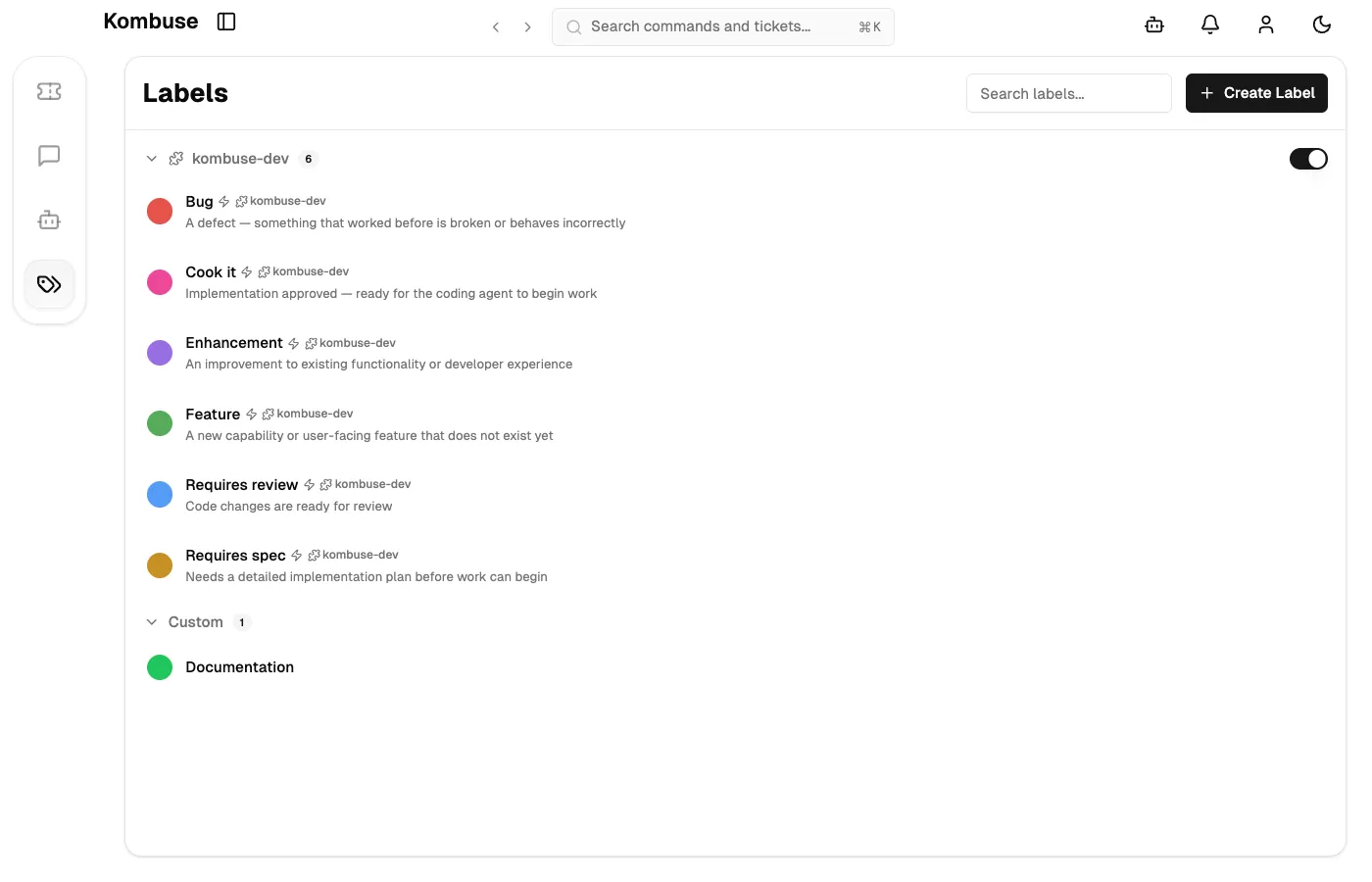
Smart labels enable a command-like workflow — adding a specific label to a ticket acts as a trigger for automation. For example, a “needs-triage” label could automatically start a triage agent, or a “docs-planned” label could kick off the next stage of an automated documentation pipeline.
See also
Section titled “See also”- Agents — create and configure AI-powered agents
- Triage with AI — set up automatic ticket classification
- Code Review with AI — set up automatic code review