Using Kombuse from Claude Code
Kombuse provides a set of MCP (Model Context Protocol) tools that make project data available to Claude Code. Once connected, Claude Code agents can create and search tickets, add comments, trigger other agents, and query the database — all from the terminal. This guide covers setting up the connection and common workflows for managing work from Claude Code.
Prerequisites: Claude Code must be installed before connecting to Kombuse. Kombuse searches for the
claudebinary at~/.local/bin/claude,/usr/local/bin/claude,/opt/homebrew/bin/claude,~/.npm-global/bin/claude, and the systemPATH. TheCLAUDE_PATHenvironment variable overrides the default search. See the Claude Code installation guide for setup instructions.
Setting Up the Connection
Section titled “Setting Up the Connection”Open the project in Kombuse and navigate to project settings. Scrolling down reveals the Initialize Project section with a button labeled “Initialize Project” and the description “Set up AGENTS.md, MCP config, and .kombuse directory for this project.”
Clicking the button creates four items in the project directory:
.mcp.json— the MCP server configuration that tells Claude Code how to connect to KombuseAGENTS.md— a template for guiding AI agents working in the project.kombuse/— local config and plugin storage directory- A
.gitignoreentry — keeps.kombuse/out of version control
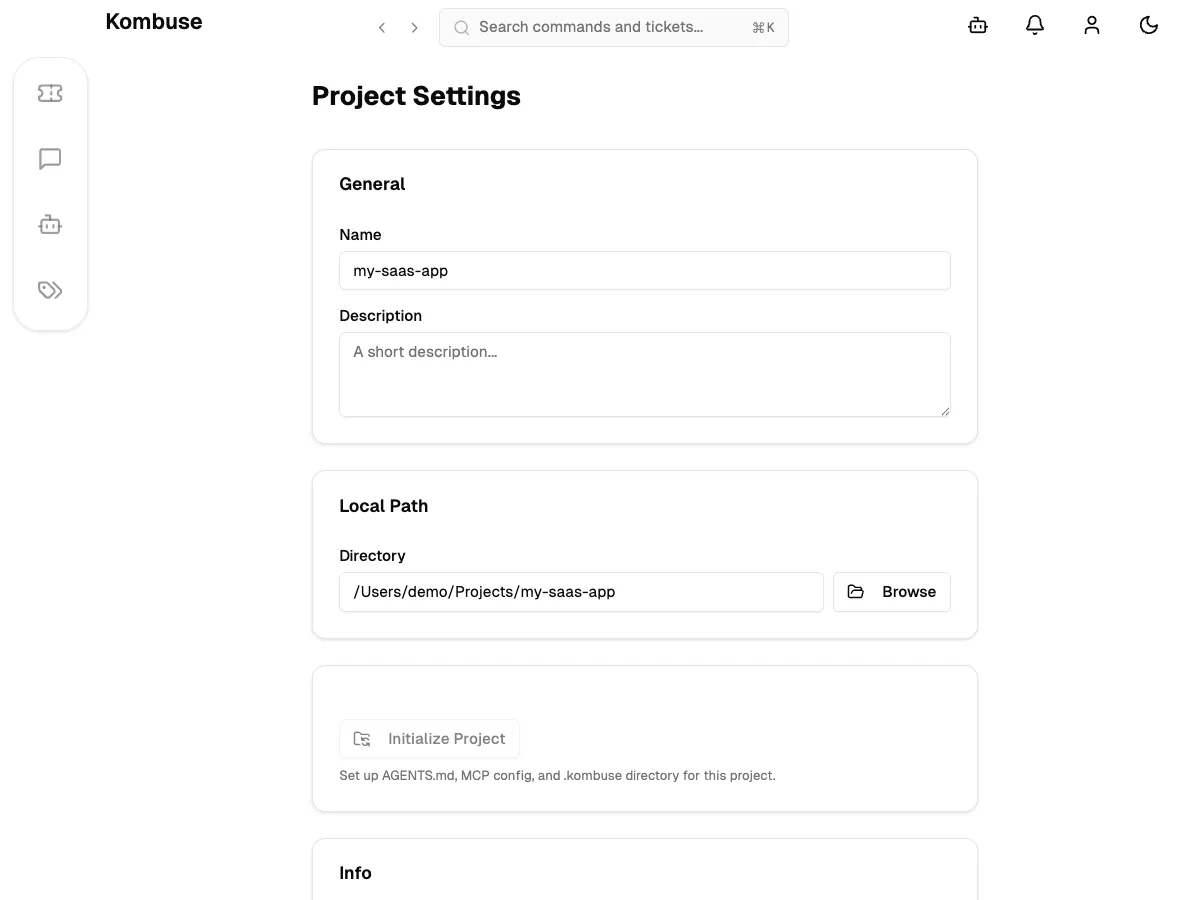
The generated .mcp.json points Claude Code to the Kombuse MCP bridge:
{ "mcpServers": { "kombuse": { "type": "stdio", "command": "node", "args": ["/Applications/Kombuse.app/Contents/Resources/package/server/mcp-bridge.mjs"] } }}The path is resolved automatically based on where Kombuse is installed. After initialization, any Claude Code session started in the project directory automatically connects to Kombuse. Initialization only needs to happen once per project.
Managing Tickets from Claude Code
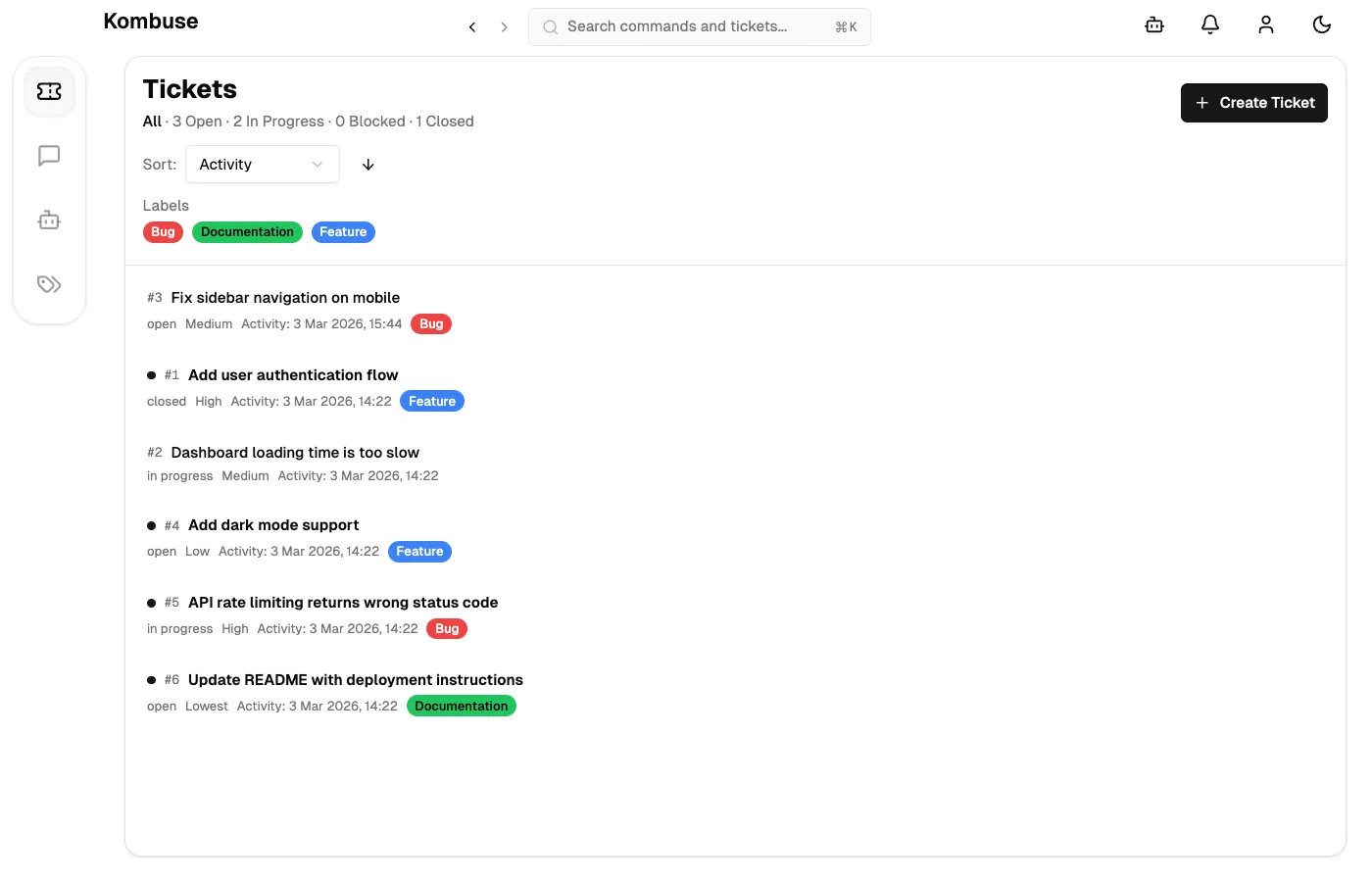
Section titled “Managing Tickets from Claude Code”Once connected, Claude Code can interact with Kombuse tickets directly. Common operations include:
- Creating tickets — asking Claude Code to create a ticket produces a new entry with a title and description using the
create_tickettool. - Searching — full-text search across ticket titles, bodies, and comments is available via
search_tickets. - Listing and filtering —
list_ticketsaccepts filters for status, assignee, and labels to narrow results. - Updating — status, priority, labels, and assignees can all be changed using
update_ticket.
Tickets created from Claude Code appear in Kombuse alongside tickets created through the UI. All standard ticket features work — statuses, priorities, labels, and assignees.
Working with Comments and Agents
Section titled “Working with Comments and Agents”Claude Code agents can read ticket comments using get_ticket and post responses using add_comment. Comments support @agent mentions and #ticket references.
A typical workflow: a user describes an issue in a ticket, then mentions an agent in a comment to investigate. The agent reads the ticket context and all previous comments, analyzes the codebase, and posts its findings. The user reviews and can mention another agent to implement the fix.
When an agent is configured with triggers in Kombuse, mentioning it in a ticket comment automatically starts a new agent session. The agent receives the full ticket context and can read all prior comments before responding. This creates a natural conversation loop where users and agents collaborate directly on tickets.
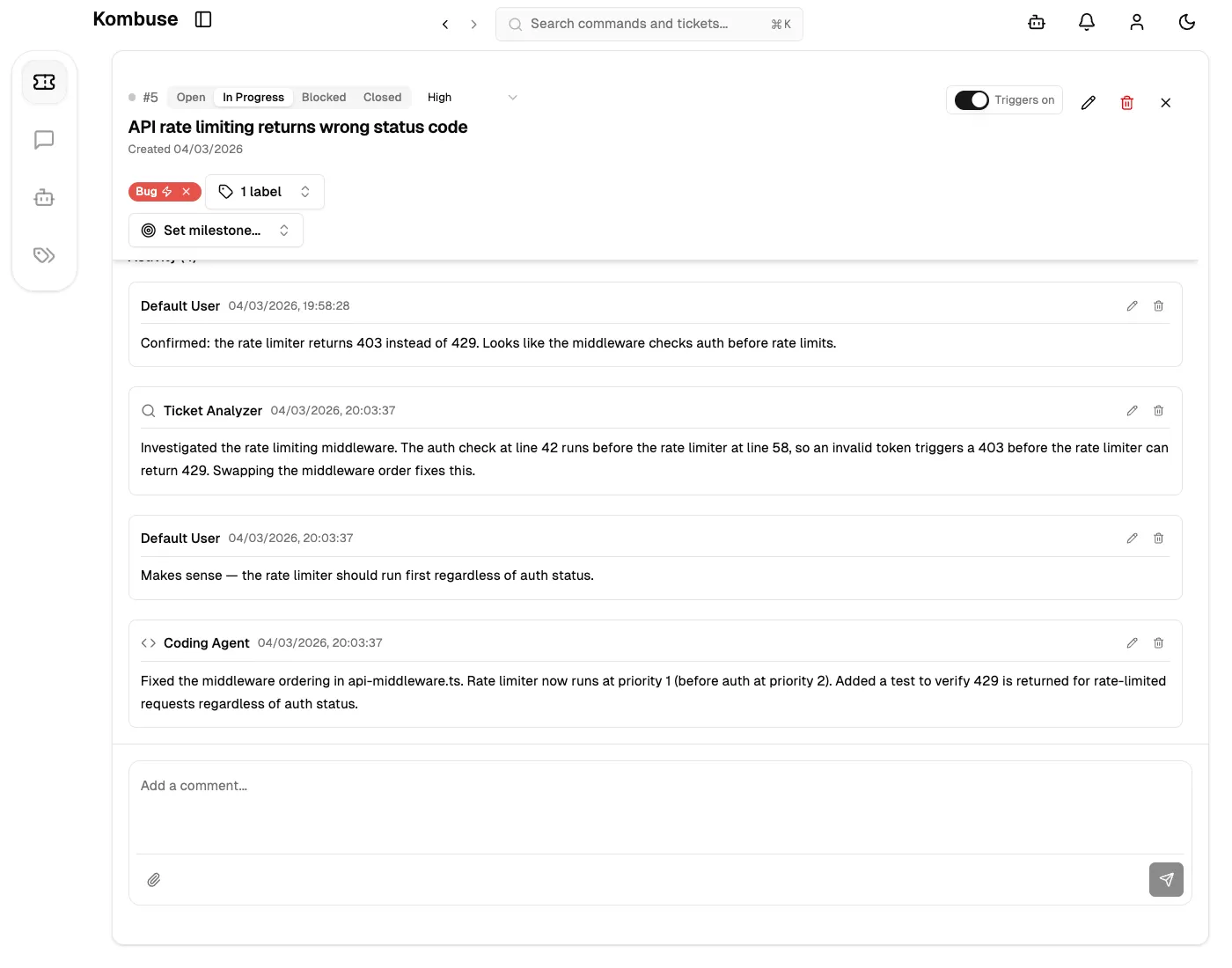
Agents include a kombuse_session_id when posting comments, which lets Kombuse track and display which session produced each response.
MCP Tools Reference
Section titled “MCP Tools Reference”Claude Code has access to all Kombuse MCP tools except the Desktop category (which requires the desktop app). This includes tools for managing tickets and projects, comments, agents, database queries, and API access.
For a complete list of available tools and their descriptions, see the MCP Integration — Available Tools guide.
See also
Section titled “See also”- MCP Integration — full MCP setup guide and available tools reference
- Getting Started — download Kombuse and set up your first project