Plugins
Plugins are reusable packages that bundle agents, labels, and optional shared files together. Installing a plugin into a project makes its agents available for use and adds its labels to the project’s label set.
What Are Plugins
Section titled “What Are Plugins”Plugins let agent configurations be shared across projects and teams. A plugin can contain any combination of agents, labels, and supporting files. Once installed, the plugin’s agents appear in the project’s agent list and its labels become available for tagging tickets.
Plugins can be distributed via local filesystem paths, GitHub repositories, or HTTP registries. For information on creating and exporting plugins, see the Building a Plugin guide.
Enabling the Plugins Page
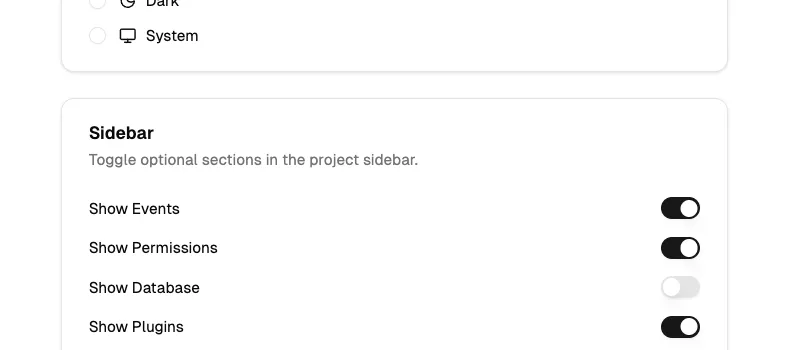
Section titled “Enabling the Plugins Page”The Plugins page is hidden from the sidebar by default. To enable it, open Settings, select the General tab, and locate the Sidebar section. Turning on the Show Plugins toggle adds a Plugins link to the project sidebar navigation.
Browsing Plugins
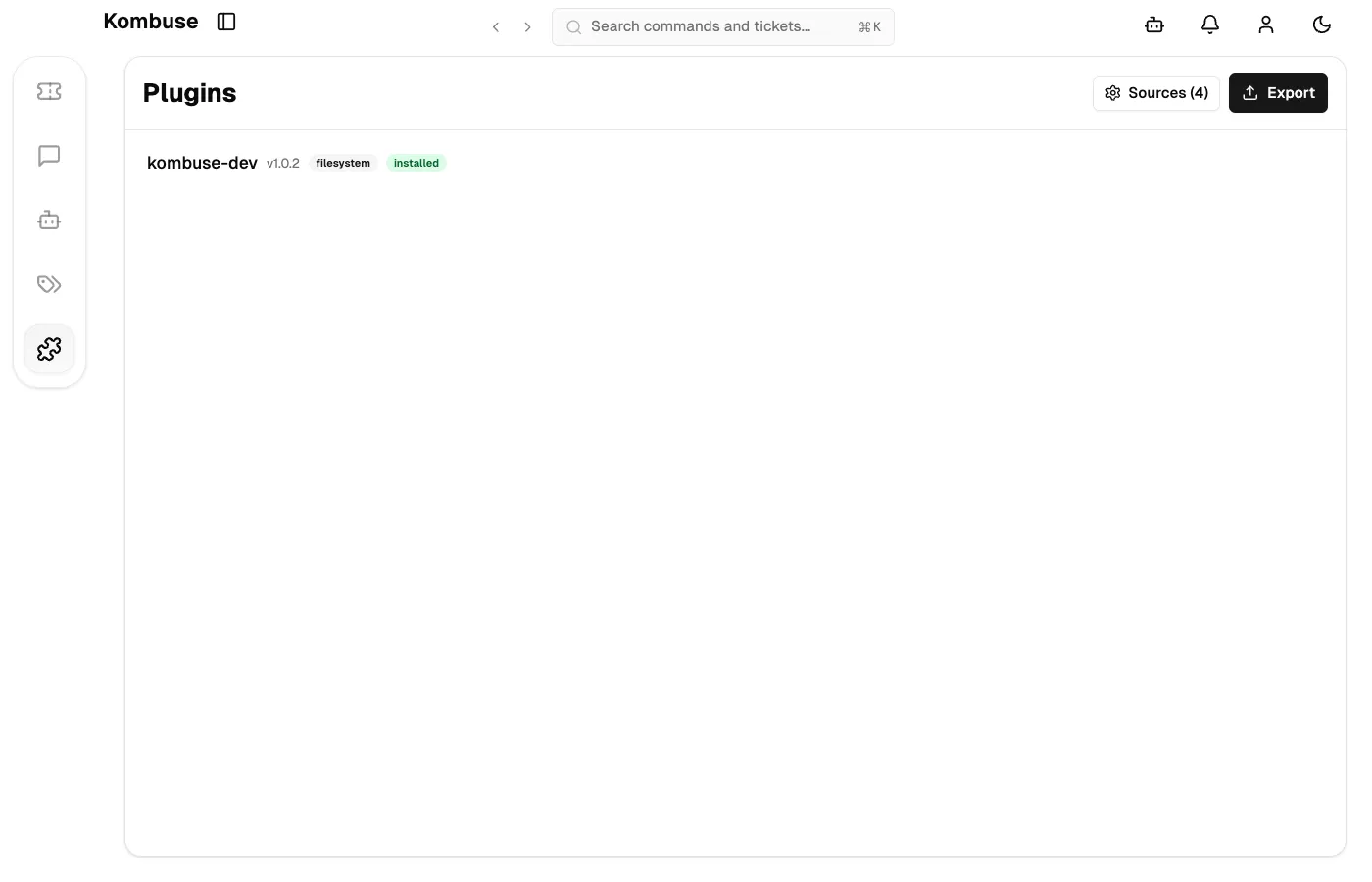
Section titled “Browsing Plugins”The Plugins page shows a unified list of all plugins available and installed from every configured source. Each entry displays the plugin name, version number, and a source badge indicating its origin — for example, filesystem, github, or http.
Status badges communicate the installation state at a glance: a green installed badge means the plugin is active, an amber update badge means a newer version is available from the source, and a gray disabled badge means the plugin is installed but currently inactive. An optional description appears below the plugin name when present. The page header contains a Sources button for managing where plugins are discovered and an Export button for packaging the current project’s agents and labels as a new plugin.
Installing a Plugin
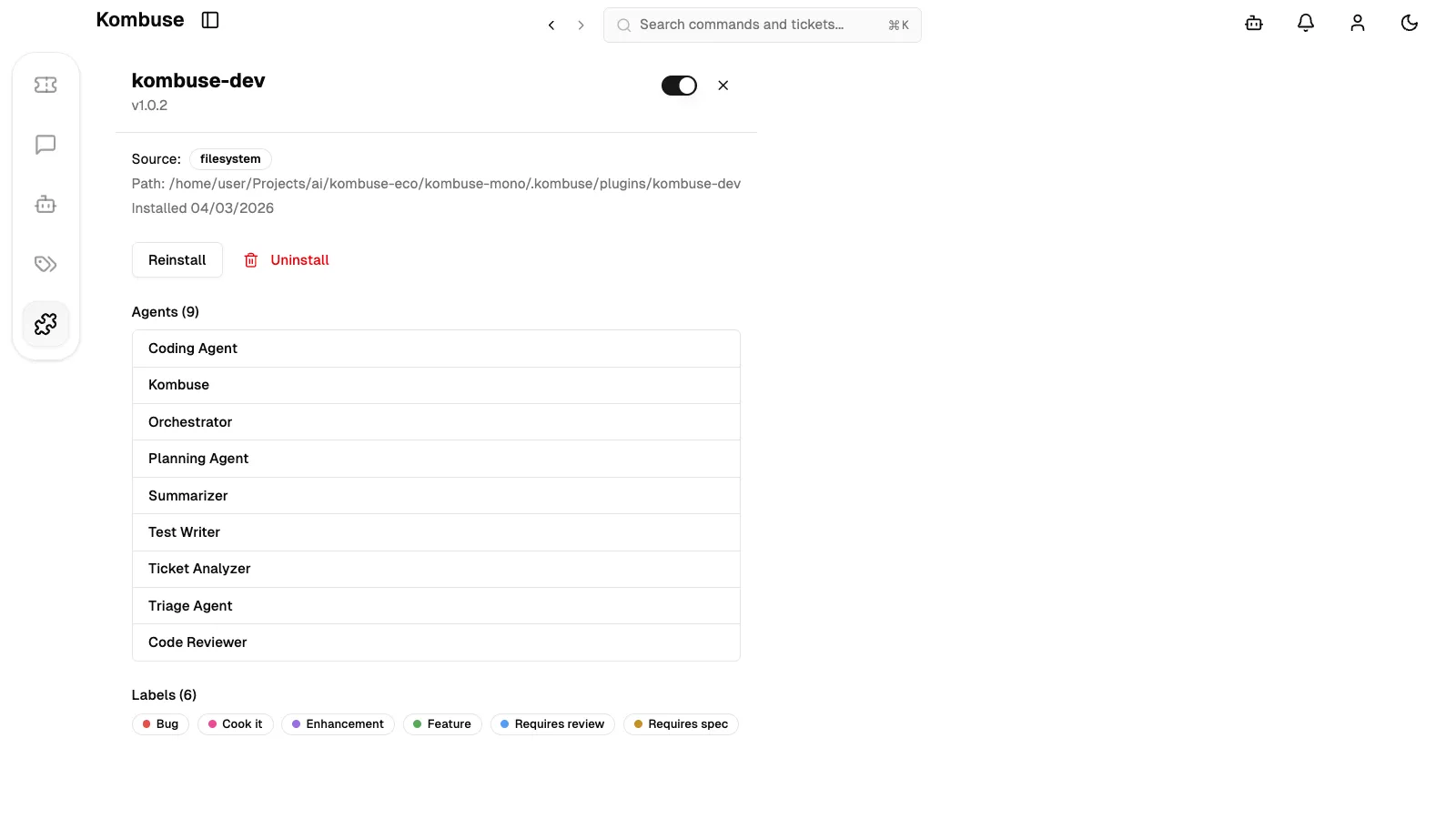
Section titled “Installing a Plugin”Clicking a plugin in the list opens its detail panel. The panel displays the plugin name, version, source badge, and directory path. For already-installed plugins, the installation date is also shown, along with a list of included agents (grouped under a heading such as Agents (3)) and labels rendered as colored pills.
The available action buttons depend on the plugin’s current state: Install for plugins that have not yet been installed, Update when a newer version exists from the source, Reinstall for plugins already at the latest version, and Uninstall (with a trash icon) to remove the plugin. An enable/disable toggle switch appears in the top-right area of the detail panel header for installed plugins.
Managing Plugin Sources
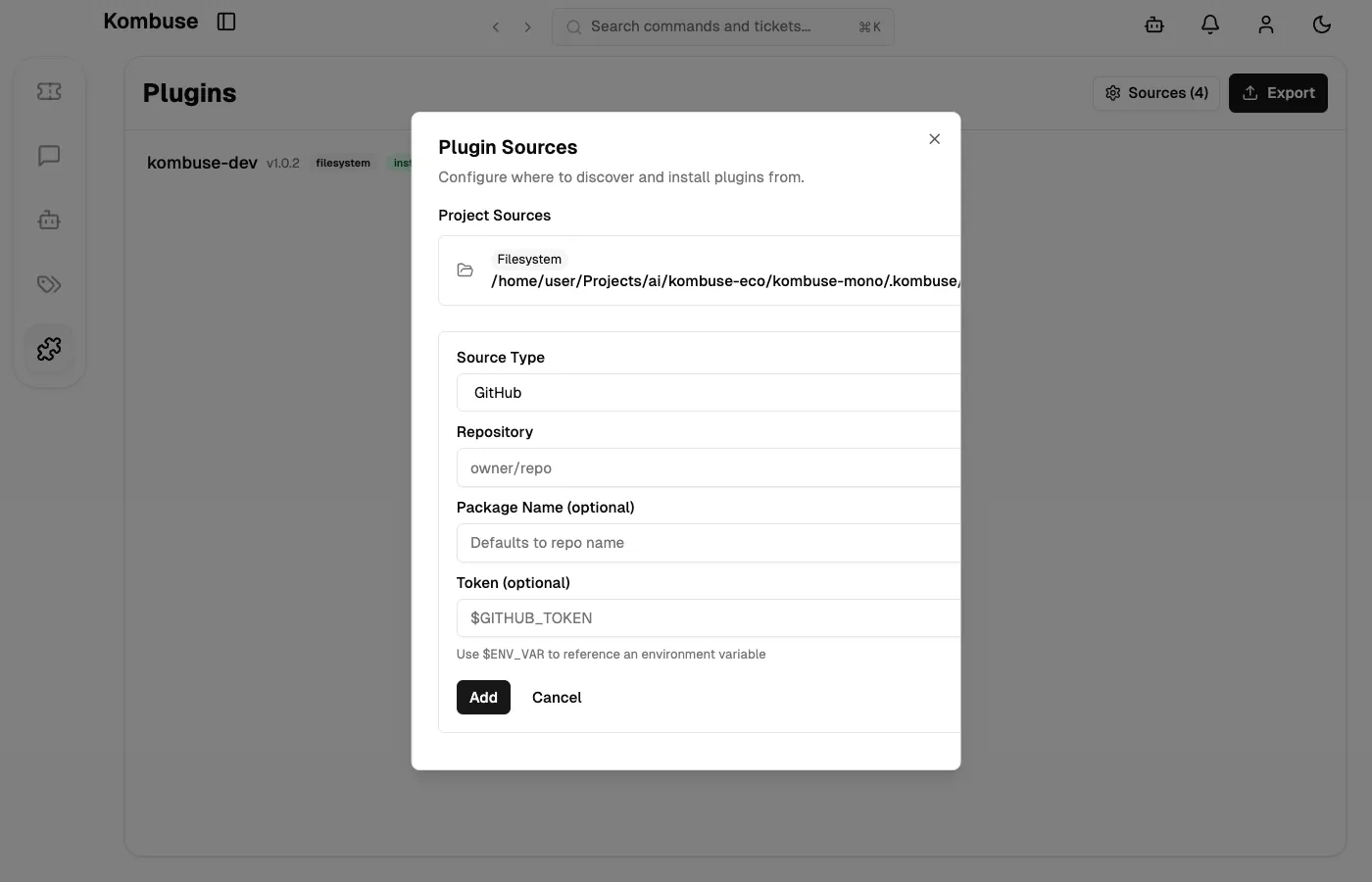
Section titled “Managing Plugin Sources”Plugin sources define where Kombuse looks for plugins. Clicking the Sources button in the plugins page header opens a summary popover; clicking Manage sources… within that popover opens the full Plugin Sources dialog.
Sources are organized into two levels. Global Sources are defined in ~/.kombuse/config.json and are read-only in the UI — they apply across all projects. Project Sources are editable per-project and can be added, edited, or removed. Several sources are configured automatically by default: the project’s .kombuse/plugins/ directory, the global ~/.kombuse/plugins/ directory, and the built-in kombuse.dev registry.
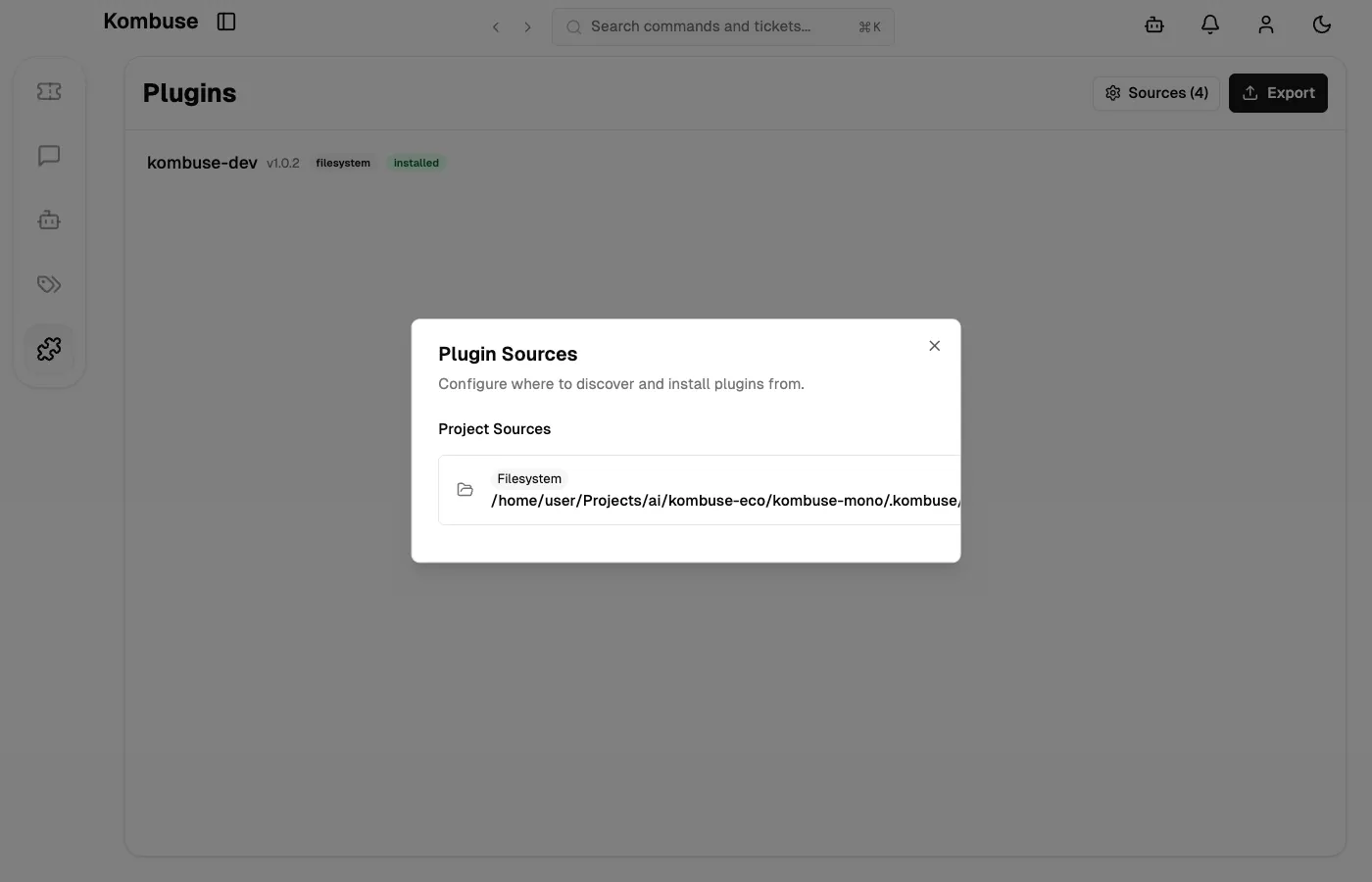
Three source types are supported. Filesystem sources point to a local directory path containing plugin packages. GitHub sources reference a repository in owner/repo format, with an optional package name and access token. HTTP sources specify a feed server base URL with an optional token. Tokens can reference environment variables using $ENV_VAR syntax (for example $GITHUB_TOKEN) so that credentials are not stored in configuration files.
Exporting a Plugin
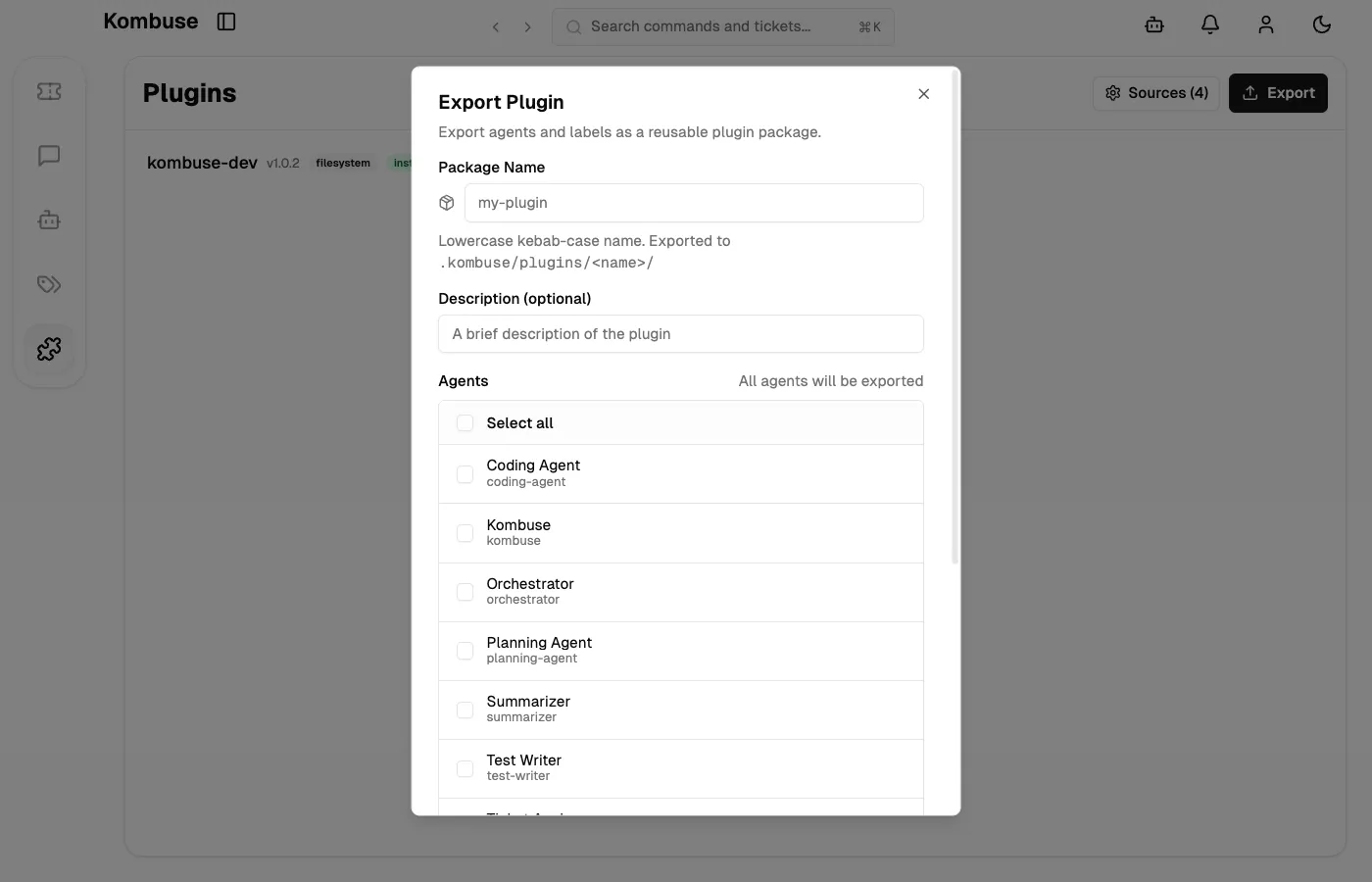
Section titled “Exporting a Plugin”To package agents and labels from the current project as a reusable plugin, click the Export button on the Plugins page. The Export Plugin dialog contains the following fields:
- Package Name — must be lowercase kebab-case (for example
my-plugin). The plugin is written to the project’s.kombuse/plugins/<name>/directory. - Description — an optional one-line description of the plugin.
- Agents — checkboxes for selecting which agents to include, with a Select all toggle. When no agents are explicitly selected, the export button reads Export All (N) and includes every agent; when a subset is selected it reads Export Selected (N).
All project labels are automatically included in every export and are shown as read-only colored pills at the bottom of the dialog. If a plugin with the same name already exists, a confirmation prompt appears before overwriting.
Updating and Uninstalling
Section titled “Updating and Uninstalling”When a newer version of an installed plugin is available from any configured source, an amber update badge appears in the plugin list. The detail panel displays the version change in the format v1.0.0 → v1.1.0. Clicking Update pulls the latest version from the source.
Updates are safe to apply. Kombuse tracks which agent fields have been customized since installation — such as system prompt, permissions, config, and enabled state. Only fields that have not been modified locally are overwritten by the update; fields with local changes are preserved.
To remove a plugin, click Uninstall in the detail panel and confirm. Uninstalling uses orphan mode by default: agents and triggers are detached from the plugin record but are not deleted, and labels are detached but remain in the project. This means existing ticket-label associations are never lost when a plugin is removed.
To temporarily deactivate a plugin without uninstalling, use the enable/disable toggle in the detail panel header. Disabling a plugin cascades to all of its agents, triggers, and labels.
See also
Section titled “See also”- Building a Plugin — create, export, and share reusable plugin packages
- Agent Permissions — control what resources and tools agents can access