Settings & Configuration
The Settings page provides controls for appearance, chat defaults, backend lifecycle, agent execution limits, and infrastructure-level configuration. Settings can be opened via the command palette (Cmd+K, then search “Open Settings”) or with the Cmd+, keyboard shortcut.
General Settings
Section titled “General Settings”The General tab groups appearance, sidebar visibility, and notification scope settings.
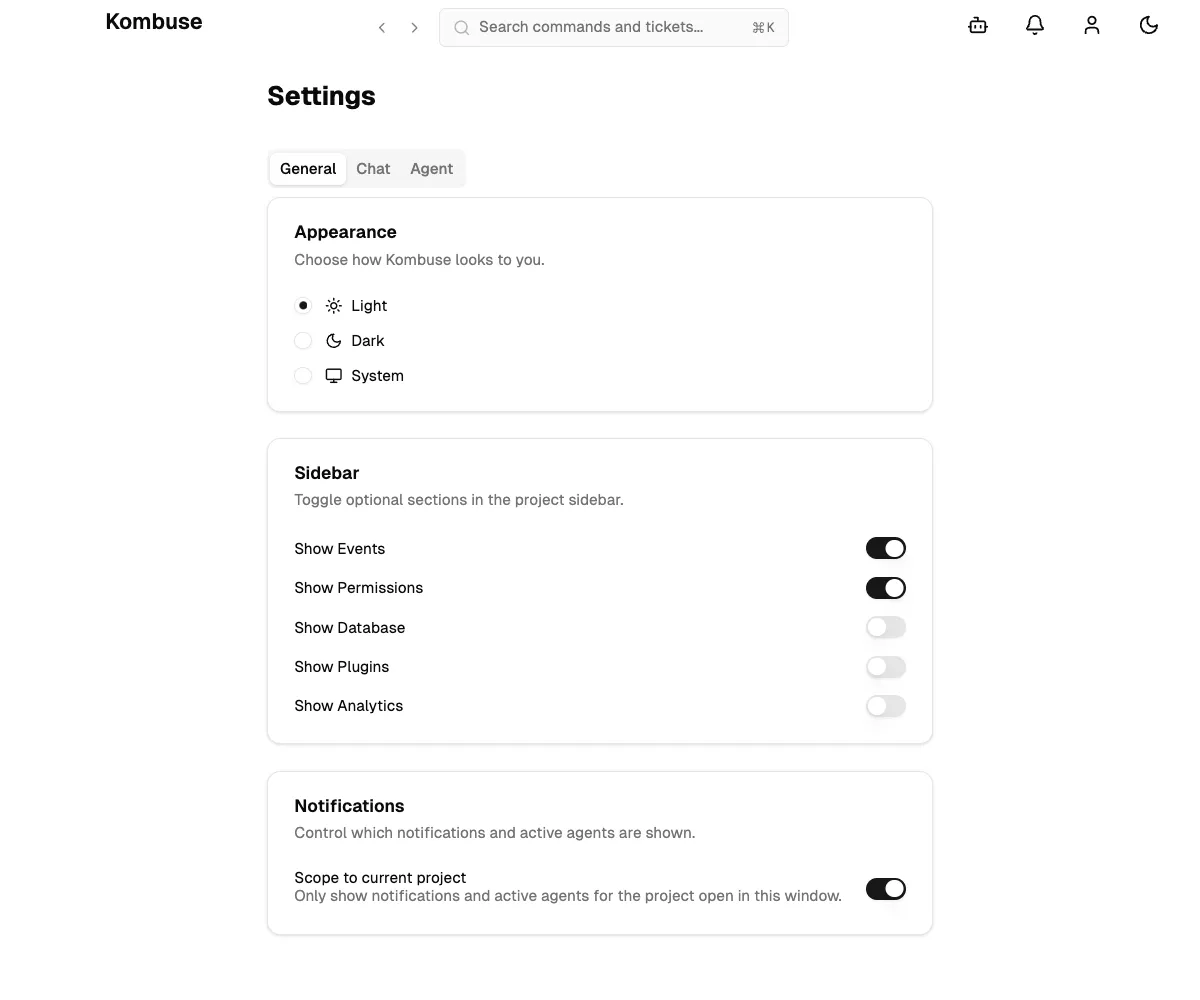
The Appearance card controls the color theme. Three options are available: Light (sun icon), Dark (moon icon), and System (monitor icon). The System option follows the operating system preference and updates automatically when the OS theme changes.
The Sidebar card has five toggles that control which optional sections appear in the project sidebar:
| Toggle | Default |
|---|---|
| Show Events | On |
| Show Permissions | On |
| Show Database | Off |
| Show Plugins | Off |
| Show Analytics | Off |
The always-visible sidebar sections — Tickets, Chats, Agents, and Labels — cannot be hidden.
The Notifications card has one toggle: Scope to current project. When enabled (the default), only notifications and active agents for the currently open project are shown.
Notifications
Section titled “Notifications”The notification bell icon appears in the header bar. A red badge shows the count of pending requests (displaying “9+” when more than nine are queued). Clicking the bell opens a popover listing all pending items. When the queue is empty, it shows “No pending requests.”
Three notification types are delivered through this interface:
Permission Requests (Shield icon, labeled “Permission”) are triggered when an agent’s tool call requires user approval before proceeding. The card shows the tool name as a monospace badge, a description of what the agent is requesting, and a preview of the command or input. Available actions: Allow (approve this one instance), Always (always allow this tool going forward), Deny (reject the request), and View (navigate to the session).
Plan Reviews (FileCheck icon, labeled “Plan Review”) are triggered when an agent calls ExitPlanMode to present its implementation plan for approval. The card shows the plan description and lists the permissions the agent is requesting as monospace badges. Clicking the plan text opens a full Plan Preview dialog for detailed review. Available actions: Approve (allow the agent to proceed with its plan), Reject (deny the plan), and Open (navigate to the session).
Agent Questions (HelpCircle icon, labeled “Input Required”) are triggered when an agent calls AskUserQuestion to ask for user input — such as a design decision, preference, or clarification. The card shows the question text and up to four answer options as outlined badges. When an agent asks multiple questions, a “+N more questions” indicator appears below. Action: Reply (navigate to the session to answer the questions).
Each notification card includes a link that opens the relevant ticket (with the session panel active) or chat session. See Agent Permissions for configuring which tool calls require approval.
Active Agents Indicator
Section titled “Active Agents Indicator”The active agents indicator (bot icon) appears in the header bar next to the notification bell. A green badge shows the count of currently running agent sessions.
Clicking the indicator opens a popover titled “Active Agents (N)” that lists each running session:
- Agent name with a running status indicator and elapsed duration (for example, “2m” or “1h 30m”)
- Ticket reference — the ticket number and title if the agent is working on a ticket, or “Chat” for standalone chat sessions
- Backend badge — shows which backend is running (for example, “Claude Code”)
- Model badge — shows which model is in use (for example, “claude-opus-4-6”) or “Backend default”
- Open button — navigates directly to the ticket and session, or to the chat session
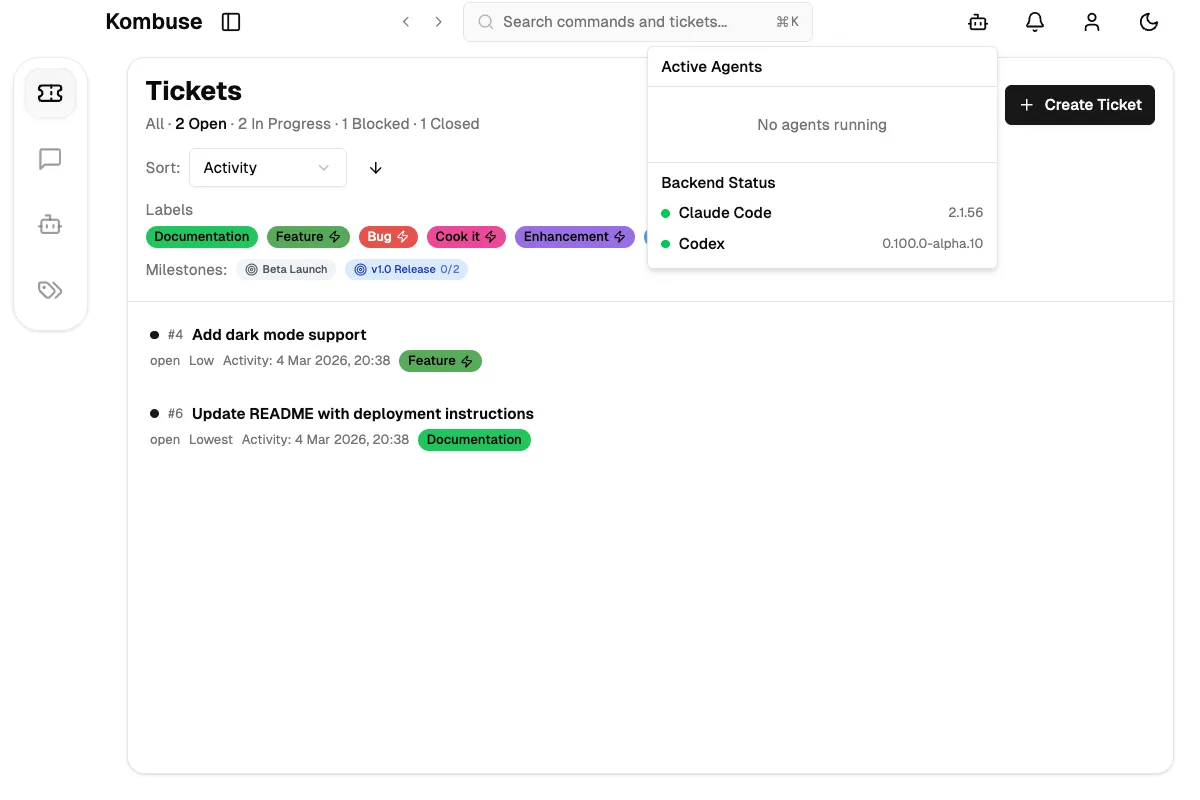
Below the active sessions, a Backend Status section shows all configured backends with availability indicators. A green dot means the backend CLI is installed and available (the version number is shown alongside). An amber dot means the backend CLI was not found on the system. A Check Again button appears when any backend is unavailable, allowing re-detection after installation.
If the WebSocket connection is interrupted, an amber “Live updates paused — reconnecting” banner appears at the top of the popover.
The active agents indicator respects the same Scope to current project setting as the notification bell.
Chat Settings
Section titled “Chat Settings”The Chat tab controls default backend and model preferences for new chat sessions.
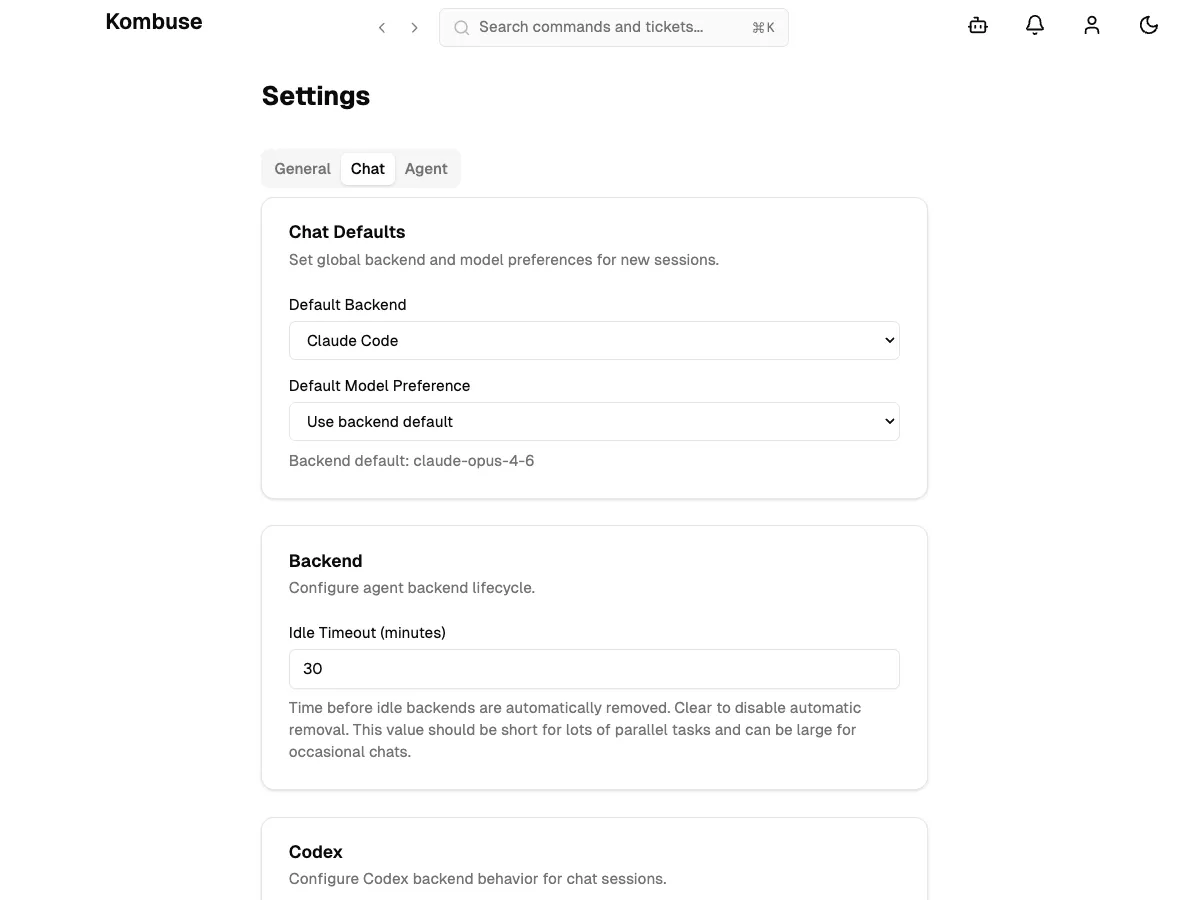
The Chat Defaults card has two fields:
- Default Backend — A dropdown listing available backends. The available options are Claude Code and Codex. If a backend is configured but its executable is not installed, the option shows “(not installed)”. If no backends are available, the dropdown is disabled and shows “No backends available”.
- Default Model Preference — A dropdown listing available models for the selected backend. The first option is always “Use backend default”. A hint below the selector shows the backend’s current default model ID.
For fresh installations, the default backend is Claude Code and the default model is Claude Opus 4.6 (claude-opus-4-6). Available Claude Code models: Opus 4.6 (default), Sonnet 4.6, Haiku 4.5, Sonnet 4.5, and Sonnet 4. Codex has no preset model defaults.
Backend Lifecycle & MCP
Section titled “Backend Lifecycle & MCP”Scrolling down the Chat tab reveals settings for backend process management and MCP integration.
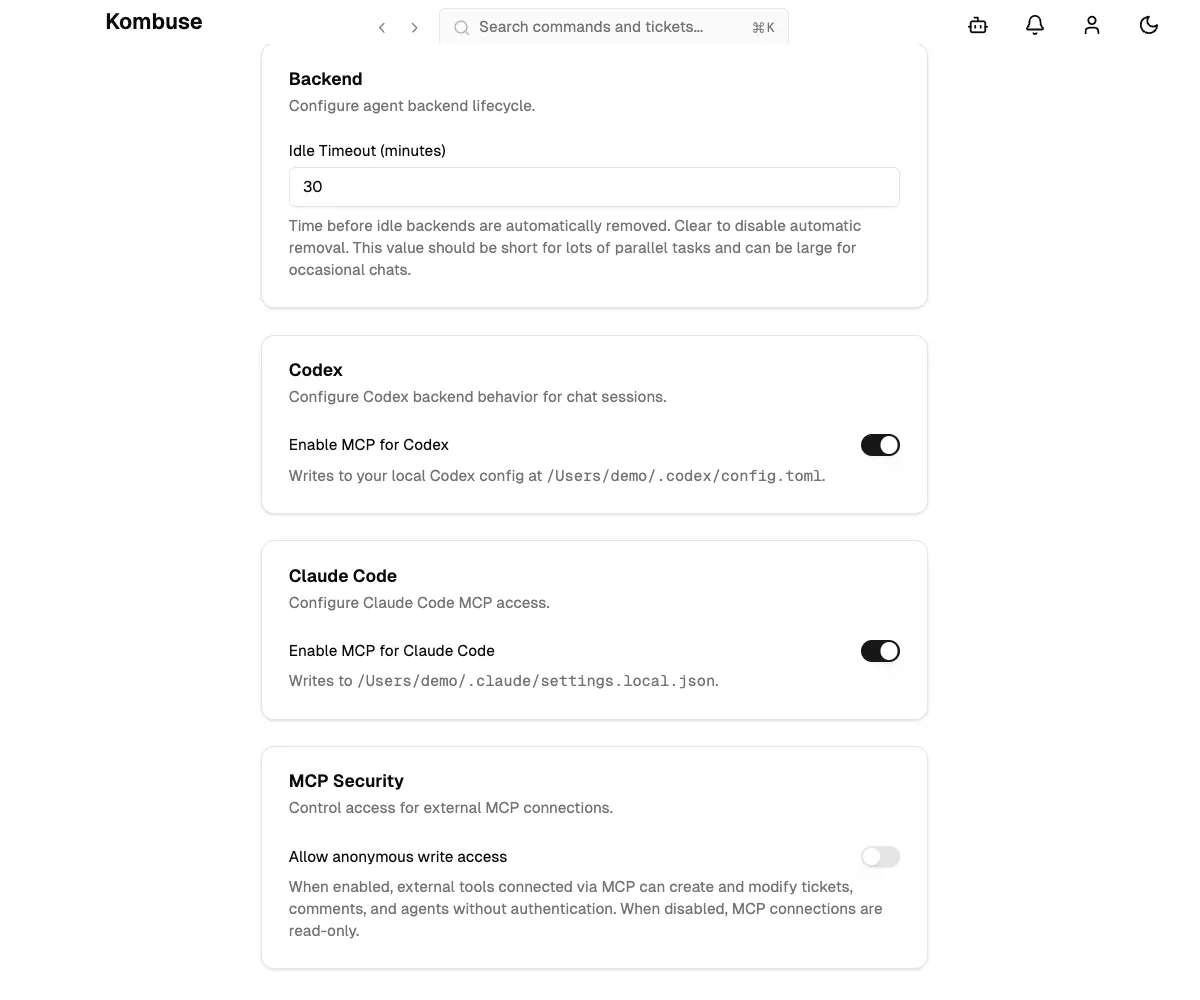
The Backend card has one setting: Idle Timeout (minutes). This controls how long an idle backend process continues running before it is automatically stopped. The default is 30 minutes. Clearing the field disables automatic removal entirely. A shorter timeout is useful when running many parallel tasks; a longer one suits occasional chat sessions.
The Codex card has a toggle: Enable MCP for Codex. When enabled, Kombuse writes an MCP server entry to the local Codex configuration at ~/.codex/config.toml. Toggling this setting stops all active Codex backends.
The Claude Code card has a toggle: Enable MCP for Claude Code. When enabled, Kombuse writes an MCP server entry to ~/.claude/settings.local.json. Toggling this setting stops all active Claude Code backends.
The MCP Security card has one toggle: Allow anonymous write access. When enabled, external tools connected via MCP can create and modify tickets, comments, and agents without authentication. When disabled, MCP connections are read-only.
Agent Settings
Section titled “Agent Settings”The Agent tab controls agent execution defaults.
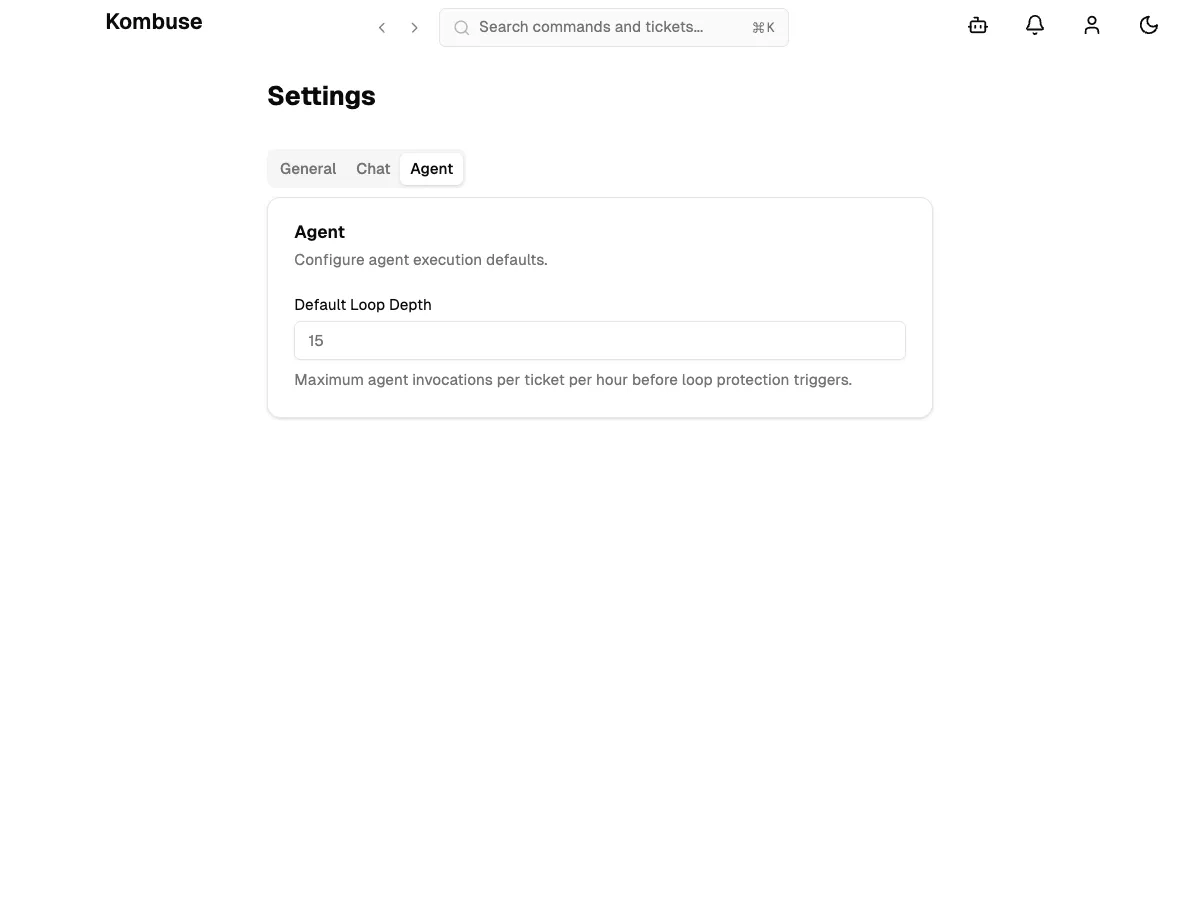
The Agent card has one setting: Default Loop Depth. This is the maximum number of agent invocations per ticket per hour before loop protection triggers. The default is 15, with a valid range of 1 to 100. Loop protection prevents runaway agent chains from consuming excessive resources.
Configuration File
Section titled “Configuration File”Kombuse reads a static configuration file at ~/.kombuse/config.json for infrastructure-level settings that are not exposed in the Settings UI. The file is optional — Kombuse uses built-in defaults if it is absent.
A per-project override is also supported at <project-path>/.kombuse/config.json.
The configuration file supports two top-level keys:
database.path
Section titled “database.path”A custom path for the SQLite database file. The value can be an absolute path or a path relative to ~/.kombuse.
plugins.sources
Section titled “plugins.sources”An array of plugin source registries. Each source object has a type field and type-specific properties:
-
filesystem — loads plugins from a local directory:
{ "type": "filesystem", "path": "/path/to/plugins" } -
github — loads plugins from a GitHub repository:
{ "type": "github", "repo": "owner/repo", "package_name": "optional", "token": "$ENV_VAR" } -
http — loads plugins from an HTTP registry:
{ "type": "http", "base_url": "https://example.com/plugins", "token": "$ENV_VAR" }
Values starting with $ (for example $MY_TOKEN) are resolved as environment variable references at startup.
Both database and plugins keys are optional — Kombuse uses built-in defaults if either key is absent. A per-project config at <project-path>/.kombuse/config.json overrides the global config on a per-key basis: whichever keys are present in the project config take precedence, and missing keys fall back to the global config.
Full schema:
{ "database": { "path": string // optional: absolute path or path relative to ~/.kombuse }, "plugins": { "sources": [ // optional: array of plugin source objects { "type": "filesystem", "path": string }, { "type": "github", "repo": string, "package_name"?: string, "token"?: string }, { "type": "http", "base_url": string, "token"?: string } ] }}Example ~/.kombuse/config.json:
{ "database": { "path": "/custom/path/kombuse.db" }, "plugins": { "sources": [ { "type": "filesystem", "path": "./my-plugins" } ] }}See also
Section titled “See also”- Getting Started — download Kombuse and set up your first project
- Projects — create and configure projects to organize your work
- Agent Permissions — configure which tool calls require approval